TutorFlow puts the code editor inside the lesson. Learners read the explanation on one side, write and run code on the other, and never leave the page for a separate IDE.
This page walks through the four coding lesson types one by one: what learners do, what you set up, where the code runs, and the limits of each type. If you only want to know how to install a Python package, jump to Python packages.
The four coding lesson types
| Lesson type | What learners do | Where the code runs | Best for |
|---|---|---|---|
| Coding Lesson | Read the explanation and practice in an editor beside it | Browser for Python and JavaScript, server for other languages | Teaching a concept with hands-on practice |
| Coding Test | Solve a problem that TutorFlow checks against your test cases | Server, every language | Graded exercises and technical assessments |
| Python Notebook | Run Python cell by cell in a Jupyter notebook | Browser | Data analysis and science, worked through one step at a time |
| Web | Edit HTML, CSS, and JavaScript and watch the page update | Browser | Front-end and web development courses |
All four are lesson types, not test question types. A standalone Test holds multiple-choice, true/false, fill-in-the-blank, open-ended, and submission questions. To grade code, add a Coding Test lesson to the course.
Which type to pick
- You want TutorFlow to grade the code: Coding Test. It runs the standard library only. Turn on Submit as well if you want to keep each learner's result.
- The lesson works with pandas, NumPy, scikit-learn, or charts: Python Notebook when learners should build the result cell by cell, or a Python Coding Lesson for one short program. Both can install packages.
- You want learners to try a concept with nothing graded: Coding Lesson.
- Learners build a web page: Web.
- You want to read each learner's code: turn on Submit for a Coding Lesson, Coding Test, or Web lesson. See Collect learner work.
When you add a lesson by hand, pick it under Type in the Add Lesson dialog. Auto lets the AI choose. When the AI builds a programming course, it is instructed to end each chapter with a Coding Test, to use a Python Notebook for any Python lesson that needs a third-party library, and to include at least one notebook once a course has three or more Python lessons. Check the types it picked before you publish.
Generating a lesson with AI uses credits. Running code, in the browser or on the server, does not. Each Submit uses 1 AI tutor credit for the grading draft.
To try the editor as a learner would, open the Python course example and the web development example. Both run without an account.
Coding Lesson
A Coding Lesson pairs an explanation with a working editor. Learners click Run and see the output in the panel to the right of the code.
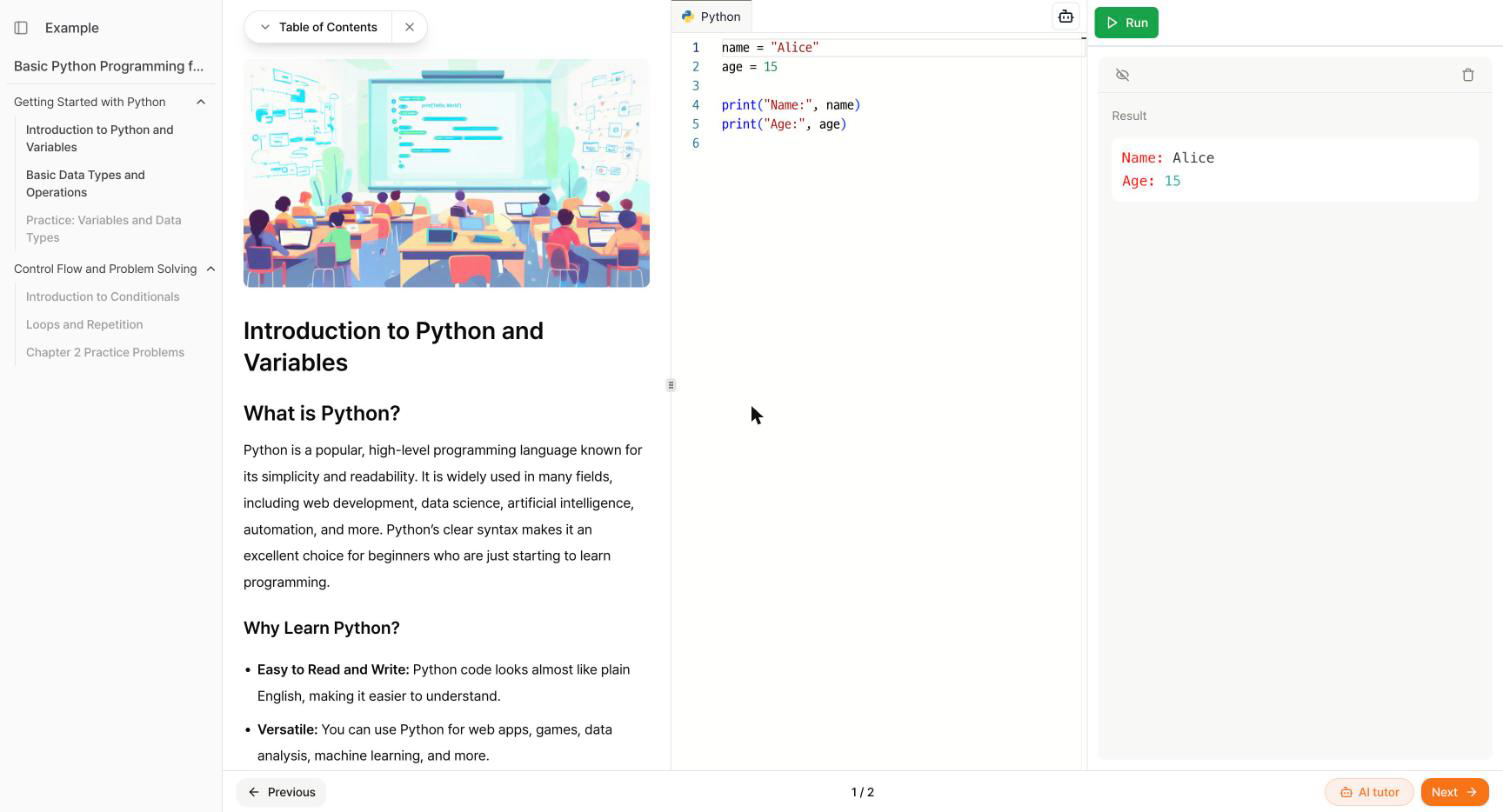
What learners do
- Edit the starter code and run it as often as they like. Nothing is graded.
- Answer
input()prompts in Python. A program that callsinput()asks for the value in a browser prompt. - Open the AI tutor from the footer. In coding lessons it starts in coach mode and gives hints before answers, unless you change the mode for the course or the lesson.
- Click Submit when you have turned it on for the lesson. See Collect learner work.
What you set up
Open the lesson, click Edit, and go to the Practice tab.
- Files. Click Add file to add one file per language. A lesson usually has one, but you can offer the same exercise in Python and JavaScript side by side and the learner switches between tabs.
- Starter code. Whatever you put in the file is what learners see first. A good starter leaves a clear gap to fill, such as a function body with
passor a# TODOcomment.
The explanation lives in the Content tab and supports Markdown, code blocks with syntax highlighting, and math.
Where the code runs
Python and JavaScript run inside the learner's browser. The Python runtime (Python 3.12) loads when the lesson opens, which takes a few seconds, and after that every run is immediate. Other languages are sent to the server runner. TutorFlow compiles and runs the code there and shows the output.
Limits
- Programs in server languages get no input. Java
Scanner, C++cin, and similar reads find nothing, so put the values in the code. - Server languages have no third-party libraries and no network access.
- Nothing is checked. For a verdict, use a Coding Test.
Coding Test
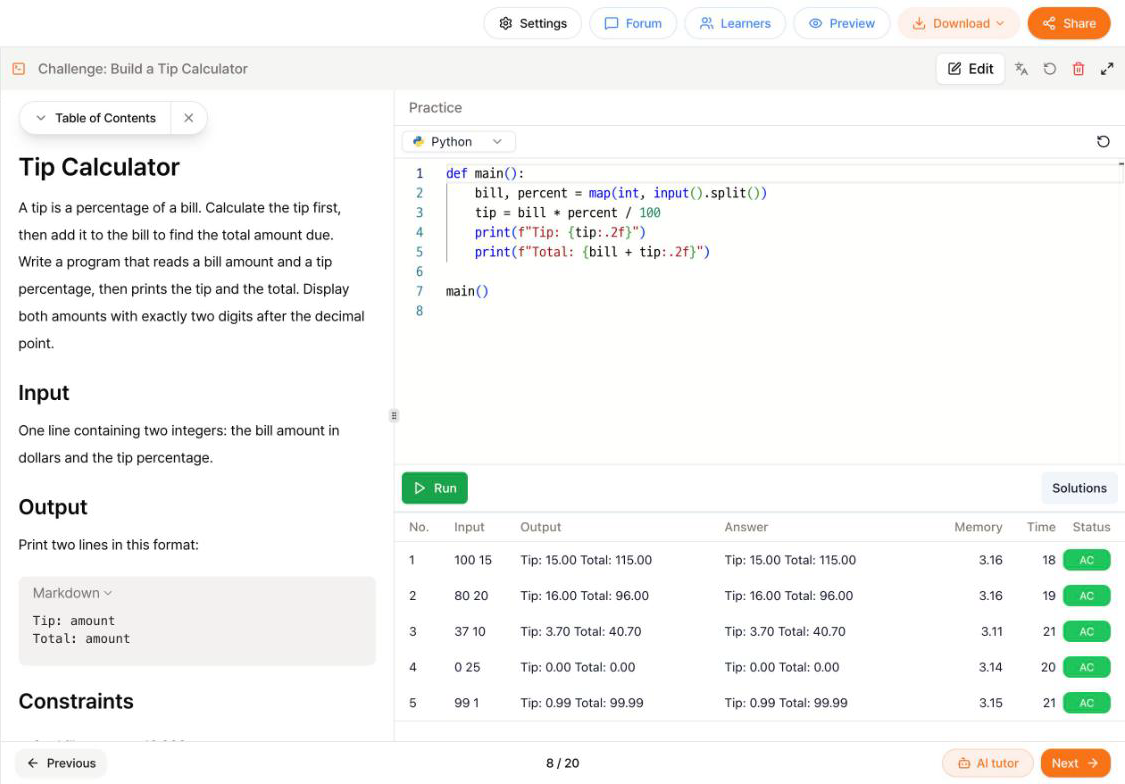
A Coding Test is a problem with test cases. Learners write a program that reads standard input and prints to standard output, click Run, and get a verdict per test case in a table below the editor.
What learners do
- Read the problem on the left: task, input format, output format, constraints, and sample cases.
- Write a solution in one of the languages you configured, with a language picker above the editor.
- Run it and read the results table: input, their output, the expected answer, memory, time, and a status. AC means accepted, WA wrong answer, TLE over your time limit, MLE over your memory limit, RE a runtime error, and CE a compile error. OE appears when the runner itself stops a program that ran far too long.
- Open Solutions, if you turned it on, to read your reference solution.
What you set up
Open the lesson, click Edit, and go to the Practice tab.
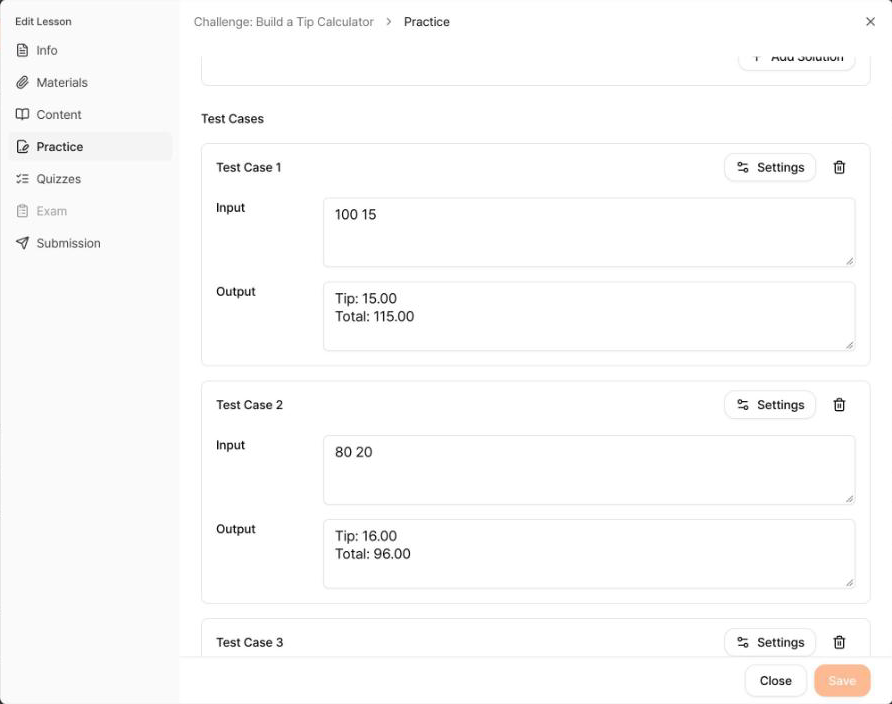
- Default Language, and under Language Configs one config per language you allow. Click Add Language Config to add a language. Each one has its own starter code in the editor at the top of its tab, plus Memory Limit (MB) and Time Limit (ms), so a Python solution can get more time than a C solution.
- Solutions. Reference solutions per language. Learners see them only when Show solution button is on.
- Test Cases. Up to 10, each with an input and the expected output. The comparison ignores blank space at the very start and end of the output, and everything in between must match the expected text line for line.
- Per-case settings. Click Settings on a test case for Hide input, Hide output, Hide answer, Hide memory usage, and Hide execution time. These hide columns in the results table, so learners do not see the expected answer of a hidden case there. They are a display setting, not a secret: the cases are part of the lesson content that reaches the learner's browser.
When the AI generates a Coding Test, it writes the statement, at least three test cases, and a reference solution from your lesson brief. Every generated case starts fully visible, so hide the ones you want to keep out of the results table. Paste your own test cases or solution into the brief and they are used as written.
Where the code runs
Every language, Python included, runs on the server runner. Each run sends the code and every test case, and the verdicts come back in the table.
Limits
- No packages. The server runner ships each language's standard distribution and nothing else, so
pip installis not available. A problem that needs pandas or NumPy belongs in a Python Notebook or a Coding Lesson. - No record without Submit. Verdicts are shown to the learner and not saved. Turn on Submit to keep them.
- No partial credit. Each test case passes or fails. If you need a rubric, use an open-ended question in a Test, or turn on Submit and add grading criteria.
- No interactive input. Programs read the whole test-case input from standard input. They cannot prompt the learner.
Python Notebook
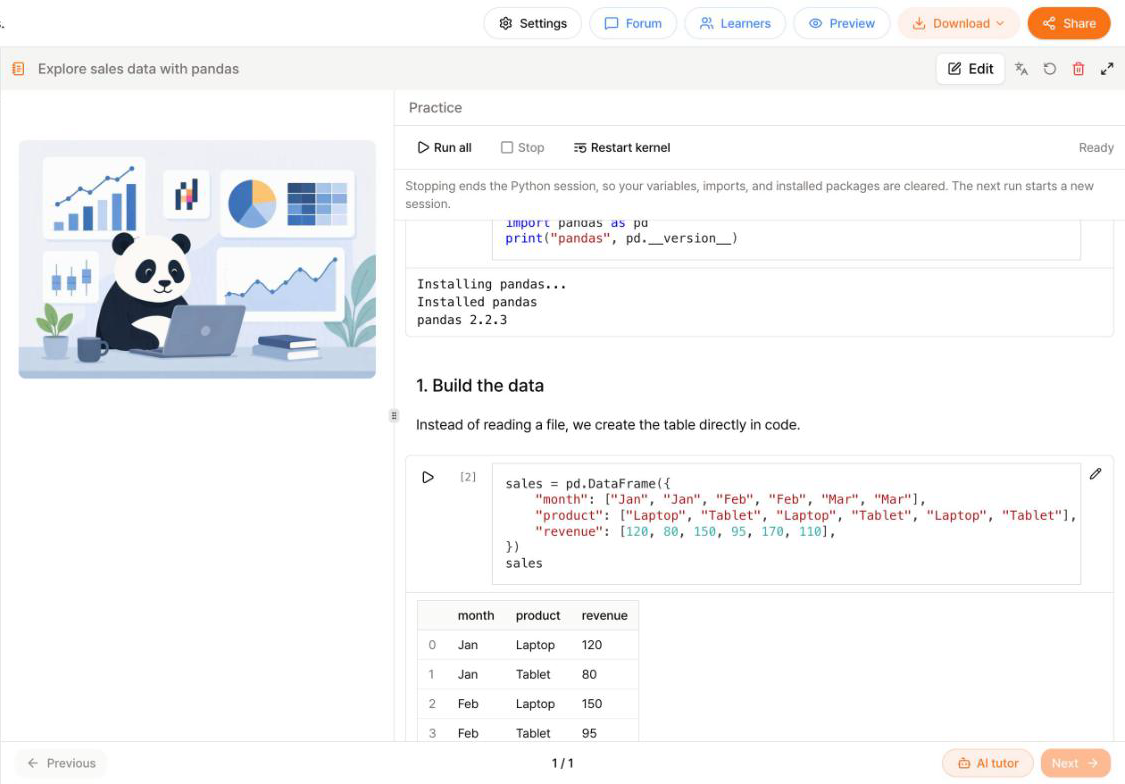
A Python Notebook is a Jupyter notebook that runs in the learner's browser. Cells share one Python session, so a variable defined in cell 2 is still there in cell 5, and learners can inspect intermediate results one step at a time.
What learners do
- Run one cell at a time, or use Run all, Stop, and Restart kernel from the toolbar. Stop and Restart kernel both end the Python session, which clears every variable, import, and installed package.
- Install packages with
%pip installor!pip installon its own line in a code cell. See Python packages. - See printed text, the value of the last expression in a cell, DataFrames as tables, and matplotlib figures as images. You do not need
plt.show(). Open figures are captured when the cell finishes. - Click Check answer under an exercise cell, when you added grading cells for it. The check runs your grading cells in the same session and shows Correct or Not correct yet. The result stays in the browser and is not stored.
What you set up
Open the lesson, click Edit, and go to the Practice tab. You can start from an existing notebook or from scratch.
- Import a notebook. Drop a
.ipynbfile up to 10 MB and 500 cells. Markdown, code cells, and embedded images come across. Stored outputs are dropped so learners run everything fresh. Only Python notebooks are accepted. - Edit cells. Add Markdown and code cells, move them, delete them, and preview the rendered Markdown.
- Give cells a role. Under Cell role, a cell is Lesson content by default. Mark a cell as Learner exercise where learners fill in code, and add a Grading cell below it that asserts on the learner's variables, such as
assert round(average, 1) == 72.5. Grading cells are never shown to learners. When an assertion fails, learners see only that the check failed, so put hints in the Markdown cell above the exercise. - Export. Click Export as .ipynb file at any time to edit the notebook in Jupyter or share it.
When the AI generates a notebook, it writes 4 to 12 cells that alternate explanation and runnable code, with exercise cells but no grading cells. Add grading cells yourself if you want the Check answer button. Tell the AI which packages and data to use in the lesson brief.
Where the code runs
Everything runs in the learner's browser on the same Python 3.12 runtime as a Python Coding Lesson. Nothing is sent to the server when a cell runs.
Limits
input()is not available in the browser. Put the values in the code instead.- There are no sockets, so
requests,urllib, andpd.read_csv("https://...")fail. Define the data in a cell. You cannot attach a CSV file to the notebook. - Jupyter magics and shell commands other than
%pip installand!pip installare not supported and raise a syntax error. - matplotlib in the browser has no Korean, Japanese, or Chinese font. Keep chart titles and axis labels in a Latin-script language, or those characters render as empty boxes with a font warning.
- Each output is cut at 500 lines or 250,000 characters, and a cell keeps at most 100 outputs, so an endless loop of prints cannot freeze the page.
- By default, Submit on a notebook asks for a written answer. You can switch it to code, multiple choice, a file link, or an AI conversation in the Submission tab, but a code answer is typed into the submission dialog. It is not taken from the notebook.
Web
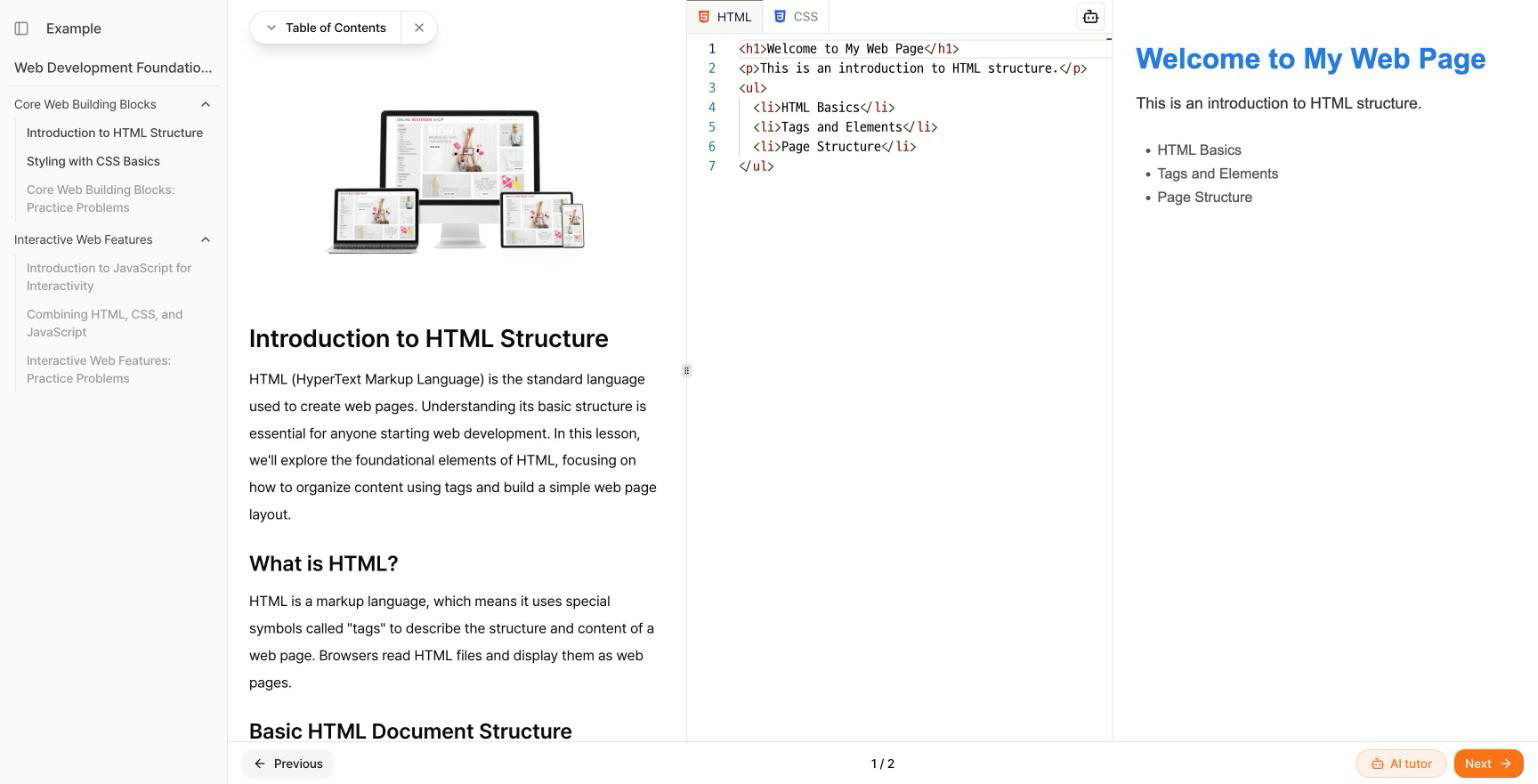
A Web lesson gives learners HTML, CSS, and JavaScript tabs and a live preview that updates as they type.
What learners do
- Edit the files and watch the preview update as they type.
- Switch between the HTML, CSS, and JavaScript tabs you provided.
- Click Submit when you have turned it on, to hand in their files.
What you set up
Open the lesson, click Edit, and go to the Practice tab. A Web lesson starts with an HTML file. Click Add file to add CSS for a styling lesson and JavaScript for interactivity. Starter code goes in each file. The explanation lives in the Content tab, as in a Coding Lesson.
Where the code runs
The page renders in the learner's browser. Nothing is sent to a server.
Limits
Web lessons do not check output, and a hand-in is stored as code without a rendered result. For a graded exercise, describe what the page must show and grade the hand-in, or pair the lesson with a quiz.
Supported languages
Coding Lessons and Coding Tests offer the same 16 languages: Python, JavaScript, TypeScript, Java, C, C++, Go, Rust, Kotlin, Swift, Ruby, PHP, R, Bash, Clojure, and Pascal. In a Coding Lesson, Python and JavaScript run in the browser and the rest on the server. In a Coding Test, everything runs on the server.
SQL is not in the runner. For database courses, teach queries in a Lecture lesson with highlighted code blocks, or run them from Python in a notebook with sqlite3, which is part of the standard library.
Python packages
Learners who come from Google Colab expect !pip install to work. In TutorFlow it works in the two lesson types that run Python in the browser, and it is not available in the one that runs on the server.
| Lesson type | pip install | Packages you can use |
|---|---|---|
| Coding Lesson (Python) | Yes, !pip install or %pip install on its own line | Bundled packages and pure-Python packages from PyPI |
| Python Notebook | Yes, !pip install or %pip install on its own line in a code cell | Bundled packages and pure-Python packages from PyPI |
| Coding Test | No | Standard library only |
Packages that need no install line
The browser runtime bundles about 350 packages built for the browser, including NumPy, pandas, SciPy, scikit-learn, matplotlib, statsmodels, XGBoost, LightGBM, Polars, OpenCV, NLTK, SymPy, NetworkX, Pillow, Beautiful Soup, and tqdm. If the code imports one of them, it is loaded on the first run. import pandas as pd works on its own.
How to install a package
For a pure-Python package from PyPI that is not bundled, such as seaborn or Plotly, put the install line on its own line before the import, the same way you would in Colab:
!pip install seaborn
import seaborn as sns

print(sns.__version__)
You can paste install lines from Colab without editing them. An install line for a bundled package is harmless, and so are -q, a trailing comment, and > /dev/null 2>&1. -r requirements.txt is skipped because there is no file to read. Everything after && is ignored, so put a second package on the same pip install line instead of chaining a second command.
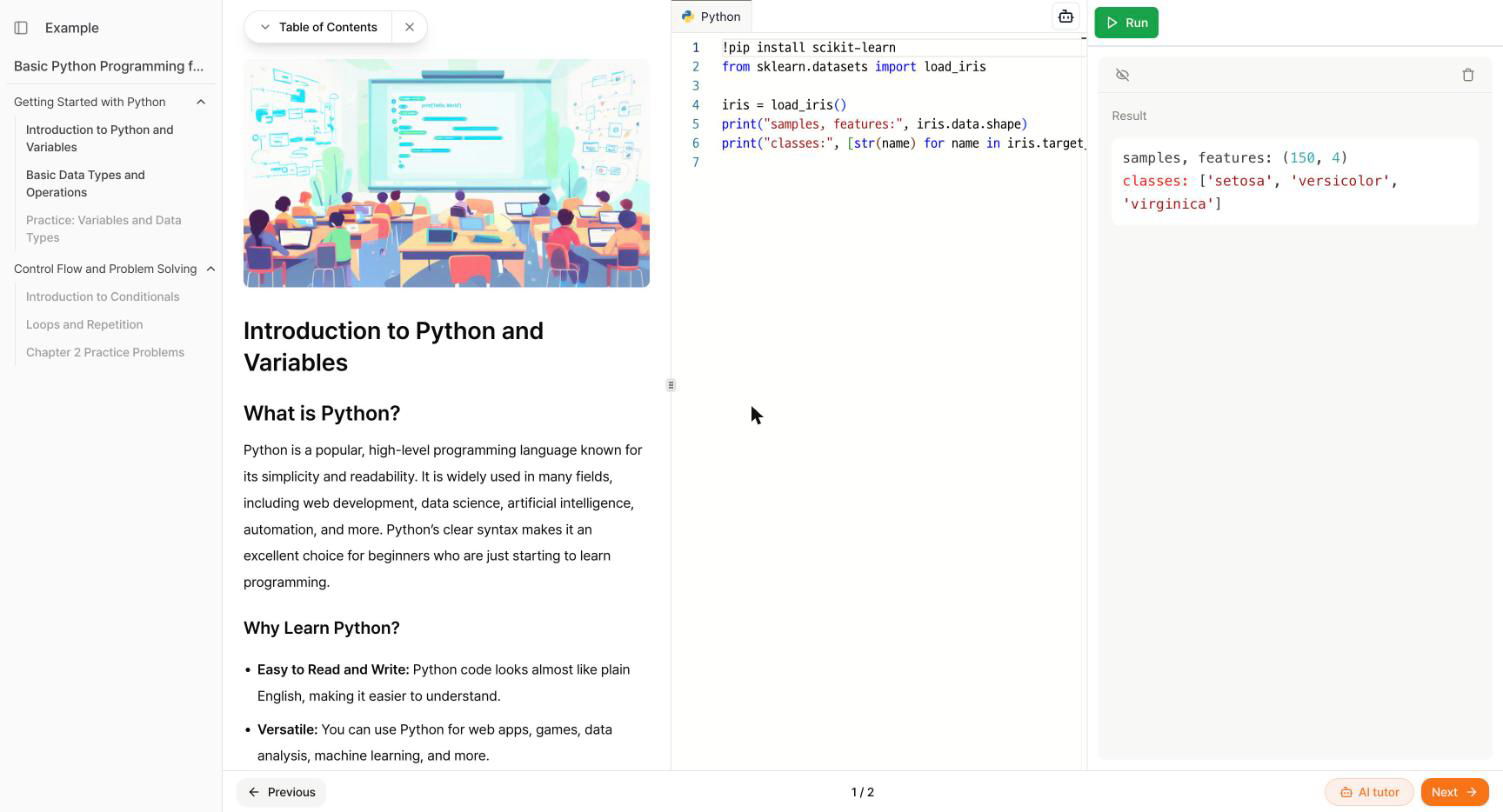
The first install or import of a large package downloads it, which can take 10 to 30 seconds on a slow connection. Later runs on the same page reuse it. In a notebook, Stop and Restart kernel clear installed packages.
What does not work
- Packages with native code and no browser build. PyTorch and TensorFlow are the main ones. There is no way to install them, in any lesson type.
- Anything that opens a network connection.
requestsinstalls but cannot open a socket. Define the data in the code instead. - Coding Tests. The server runner has no package index and no network, so there is nothing to install. Keep Coding Test problems to the standard library.
Collect learner work
Code runs are not recorded on their own. To keep a record, turn on Enable assignment submissions in the lesson's Submission tab. Learners then find the assignment under the lesson material, below any quizzes: your instructions, the questions, and one Submit assignment button. Their status and score appear in the same place after they submit, and so does Submit again if you allow more than one submission. The button in the lesson footer reads Assignment, Submitted, or Graded with the score, and takes learners straight to that section.
When the whole hand-in is code, learners don't have to copy anything across. Submit my current code hands in the code in the practice panel as it is now, and Open editor lets them check or change it first.
In the course editor you see the assignment as a read-only card. Preview as learner lets you answer it yourself and read the grading draft you would get. Nothing is saved, and each preview uses 1 credit.
- What is stored. The learner's code is stored together with the output of one fresh run at the moment they submit.
- Where that run happens. A Python file that uses only the standard library runs in the learner's browser. Code in other server languages runs on the server.
- What has no output. A Web lesson, and a Coding Lesson with more than one file, are stored as code only.
- Python with packages. The server has no packages, so a Python hand-in that imports pandas or another library is stored with an import error as its output. Read the code itself, or ask for a written answer alongside it.
- Coding Tests. A Coding Test hand-in is scored again on the server against your test cases.
- Reviewing. Every hand-in appears in the course's Submissions tab, with the AI grading draft that only you can see.
Course analytics add the context around the hand-ins:
- The Learners tab shows how many lessons each learner completed, their learning time, and their quiz and exam scores. Coding Test verdicts do not appear there.
- Click a learner to see their hand-ins with code, run output, and the AI draft, plus their quiz and exam history.
- The Lessons tab shows, for each lesson, which learners completed it.
Recommended course structure for coding content
A lesson that teaches one coding concept well usually follows this pattern:
- Concept explanation. Introduce the idea in plain language, with an analogy if useful.
- Worked example. Show a complete, working code sample with annotations.
- Guided task. Give learners a pre-filled problem to complete or modify in a Coding Lesson.
- Open practice. Ask them to solve a fresh problem from scratch.
- Reflection. Ask them to explain what their solution does in an open-ended Test question, or let the AI tutor ask.
- Assessment. Check correctness in a Coding Test and written understanding in a quiz or exam.
For data courses, swap steps 2 to 4 for a Python Notebook: the worked example and the guided task become cells in the same notebook, and grading cells give learners an immediate check.
Keep theory blocks short and define clear expected outputs for exercises. "Your function should return X given input Y" is easier to check, and easier for learners to verify themselves, than open-ended tasks.
Related pages
- Create Your First Course: generate a course from a topic and review it before publishing.
- Build from a PDF or PPTX: turn a PDF or PPTX of Python material into a coding lesson and a test.
- Tests and Quizzes: the question types available outside coding lessons.
- Build AI Practice Courses
- STEM and Open-Ended Assessments