Training teams rarely struggle because they cannot make a video at all. The harder problem is choosing a tool that can survive the second version of the video: the policy clause that changes next quarter, the onboarding step that gets renamed, the STEM explanation that needs one more scene, or the subtitle line that mishears a technical term.
The best AI tool for creating training videos in 2026 is not the one with the most impressive demo. It is the one that fits the kind of training you actually produce, gives you enough editing control after generation, and keeps narration, scenes, and subtitles easy to revise.
Quick answer: match the tool to the training job
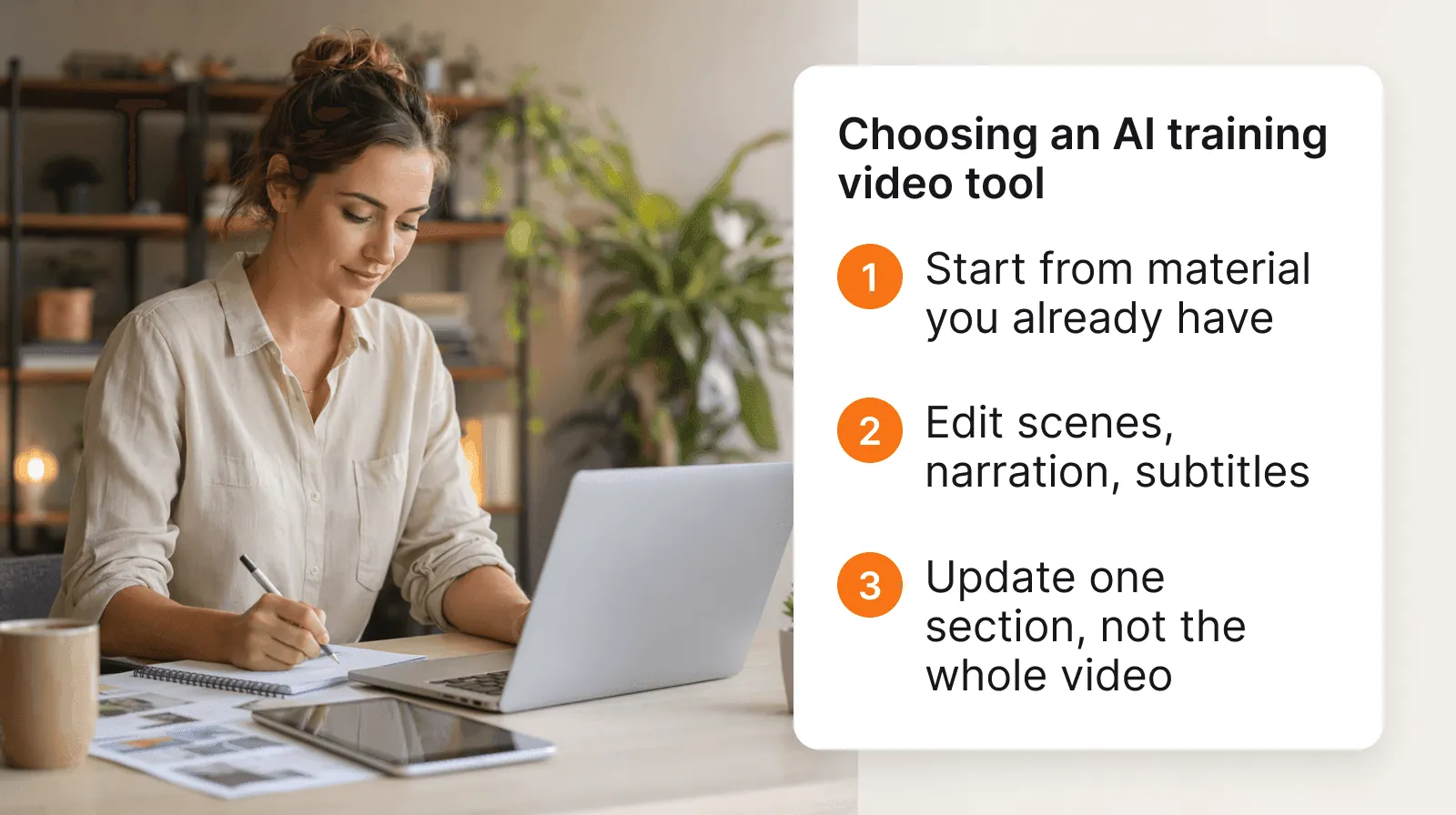
If you need one rule, start here: use avatar or presenter tools for simple scripted announcements, screen-capture tools for software walkthroughs, and lesson-oriented tools for structured teaching or training modules. For educators and L&D teams, the strongest AI video workflow usually starts from existing material, creates editable scenes, generates narration and subtitles, then lets a human review each segment before publishing.
That last step matters. A generated training video is only useful if your team can correct it without rebuilding the whole asset. In a real review cycle, the winning tool is often the one that makes a five-minute revision take five minutes, not the one that creates the flashiest first draft.
The main categories of AI training video tools
Before comparing products, compare categories. Many tools use similar AI language, but they are built for different jobs.
| Tool category | Best fit | Watch out for |
|---|---|---|
| Avatar and presenter tools | Policy explainers, announcements, short scripted updates | Weak fit when the teaching depends on examples, diagrams, or step-by-step pacing |
| Screen recording and capture tools | Software onboarding, product training, internal systems walkthroughs | Harder to use when the content starts from a course outline or training document |
| Lesson and course generation tools | Compliance modules, onboarding lessons, STEM explanations, reusable training content | Needs a strong scene editor so trainers can review and revise generated structure |
| Subtitle and transcript tools | Accessibility cleanup, localization prep, searchable training libraries | Not enough by itself if the video structure still has to be created elsewhere |
TutorFlow belongs in the lesson and course generation category. That is the right category when your team thinks in modules, lessons, scenes, narration, captions, and review cycles, not only in one-off clips.
A better checklist for choosing an AI training video tool
Do not trial a tool with a polished sample prompt. Use a real piece of training your team already needs to ship, then score each candidate against the same criteria.
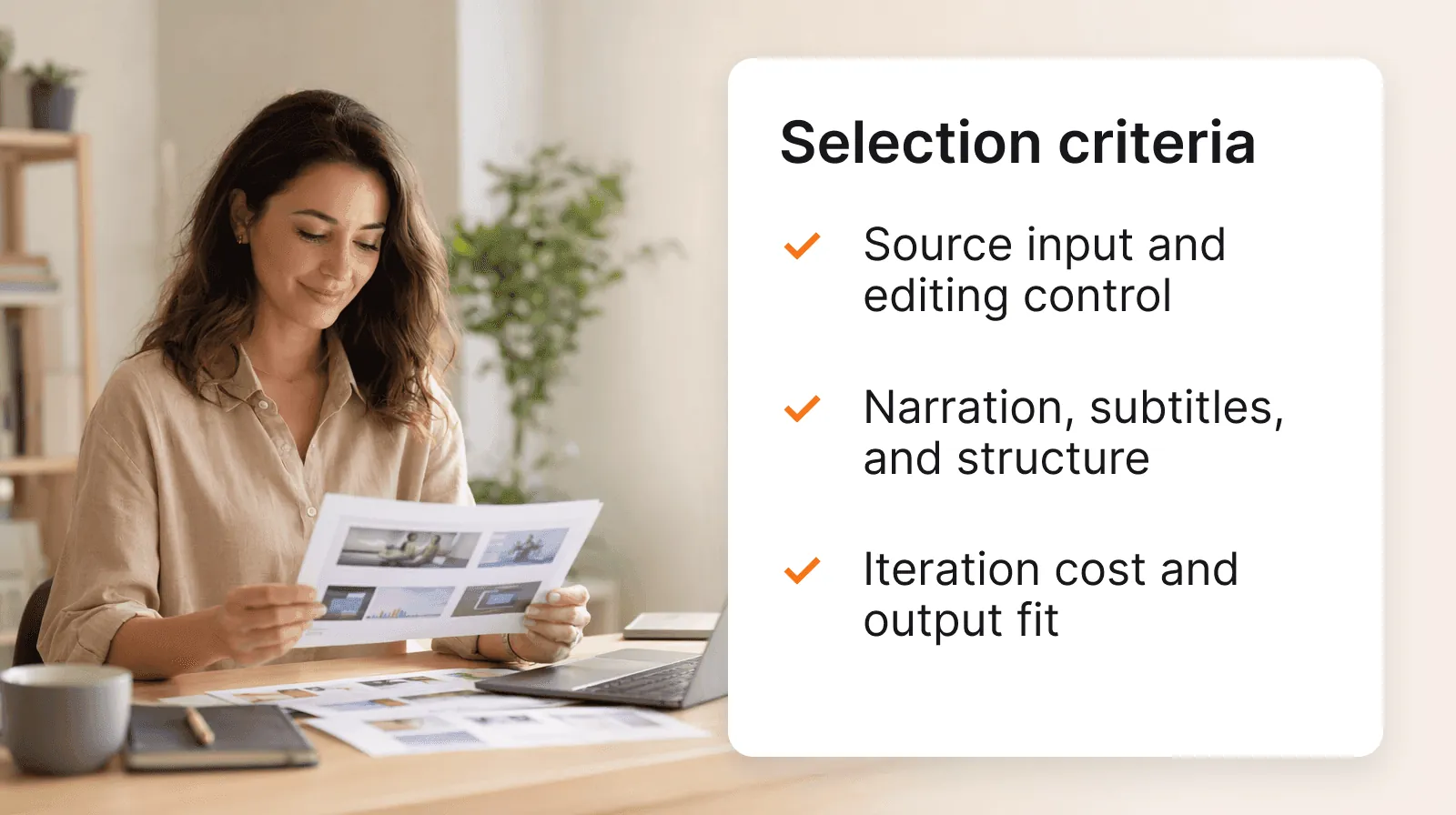
- Source input: Can the tool start from the material you already have, such as a document, outline, slide draft, SOP, or lesson notes?
- Scene control: Can you edit, reorder, remove, or regenerate one scene without touching the rest of the video?
- Teaching structure: Does the tool understand modules, lessons, examples, and pacing, or does it only turn a script into a clip?
- Narration control: Can you adjust the script after generation, preview changes, and keep the voice consistent?
- Subtitle quality: Does it generate captions and transcripts, and can you correct timing, names, numbers, and technical vocabulary?
- Review workflow: Can an educator, trainer, or subject-matter expert review the video before publishing?
- Revision cost: When one fact changes, can you update one segment instead of recreating the whole video?
- Output fit: Does the final format work for your LMS, knowledge base, classroom, or internal training library?
If a tool fails on scene control or revision cost, it will probably frustrate your team after the first launch. That is where many AI video demos are misleading: they show generation, not maintenance.
How to evaluate tools by scenario
For compliance training, prioritize accuracy, repeatability, captions, and audit-friendly edits. A compliance team does not want to rebuild a 12-minute refresher because one policy sentence changed. The tool should let you revise one scene, check the narration, update subtitles, and keep the rest of the module intact.
For employee onboarding, prioritize coverage and consistency. New hires usually need many short lessons about tools, policies, culture, and workflows. A useful AI tool should turn existing handbook or wiki material into a sequence of teachable videos, then let the onboarding owner adjust tone and order.
For STEM and technical instruction, prioritize pacing and explanation control. The value is not just the voiceover, it is the order of the steps, the examples, and the time spent on the difficult part. A scene editor becomes essential because a generated first pass may skip the exact moment where learners usually get stuck.
For software and product training, prioritize showing the real interface. If the training depends on clicks, menus, and current UI states, a capture-focused tool may be the strongest choice. A lesson-oriented tool can still help with framing, narration, and follow-up assessment, but the core asset often needs real screen footage.

Where TutorFlow fits
TutorFlow is a teaching and training platform for educators, trainers, and content creators. For video work, it is most useful when you want to turn teaching material into editable video lessons with scenes, narration, and subtitles.
That makes it a better fit for structured training than for quick, single-purpose recordings. If your main task is a live software demo, a capture-first tool may be the right starting point. If your task is turning a training document, lesson outline, or course plan into a video module that your team can review and revise, TutorFlow belongs on the shortlist.
The practical advantage is the review loop. A trainer can look at the generated scenes, adjust the order, refine the narration, and correct subtitles before publishing. That workflow is slower than a magic one-click demo, but it is much closer to how serious training content actually gets approved.
Run a fair trial before you standardize
Pick one training asset with real constraints: a policy update, a new-hire lesson, a technical explanation, or a product walkthrough. Give the same source material to two or three tools. Then compare the second edit, not only the first output.
Ask these questions during the trial:
- How much cleanup did the first draft need?
- Could a non-video specialist make the edits?
- Were captions accurate enough after one review pass?
- Did the final structure match the way the topic should be taught?
- How long did it take to update one section after feedback?
The best tool is the one your team can keep using after the launch moment. For most education and L&D teams, that means choosing for maintainability, reviewability, and teaching structure, not just generation speed.
If you want to see how structured video creation works in TutorFlow, start with the video creation guide and test it with a real training outline.
Frequently asked questions
What is the best AI tool for creating training videos in 2026?
The best AI tool depends on the training job. Avatar tools fit scripted announcements, screen-capture tools fit software walkthroughs, and lesson-oriented tools like TutorFlow fit structured training modules that need scenes, narration, subtitles, and human review.
Can AI tools create subtitles for training videos?
Yes. Many AI video tools can generate subtitles and transcripts, but the important feature is editability. Training teams should be able to correct names, numbers, technical terms, and timing before publishing.
Should training teams use one AI video tool or several?
Many teams will use more than one. A lesson-oriented platform can handle compliance, onboarding, and instructional videos, while a capture-focused tool may still be useful for live software demos. The right setup follows the type of training content your team produces most often.