Creating a TutorFlow account takes under two minutes. This guide walks through email and Google sign-up, the initial classroom setup, and what to do if you already have an account.
At a glance
- Sign-up URL: https://tutorflow.io/sign-in
- Two sign-up methods: email plus password, or Google single sign-on.
- Initial classroom setup happens automatically after sign-up and takes one screen.
- Classroom URL is auto-generated from the classroom name and can be customized.
Sign up with email
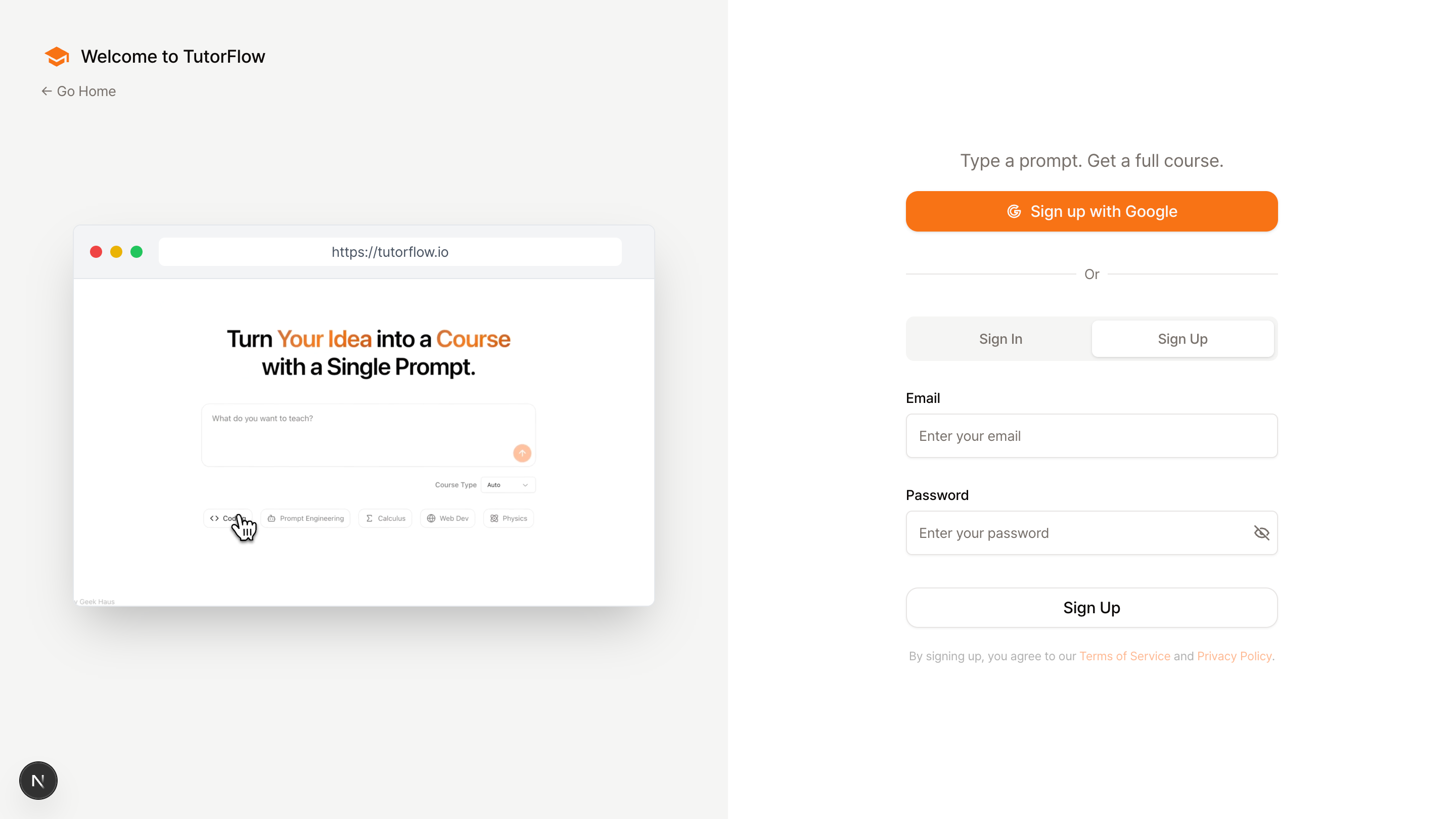
- Visit https://tutorflow.io/sign-in.
- Click Sign Up in the tab bar.
- Enter your email address and create a password.
- Submit the form to create your account.
Google sign-in is supported and is the fastest option if you already have a Google account. Click Continue with Google on the sign-in screen to skip the email and password step.
Set up your first classroom
After signing up, TutorFlow prompts you to create your first classroom. The classroom is the environment where your courses, learners, and analytics live.
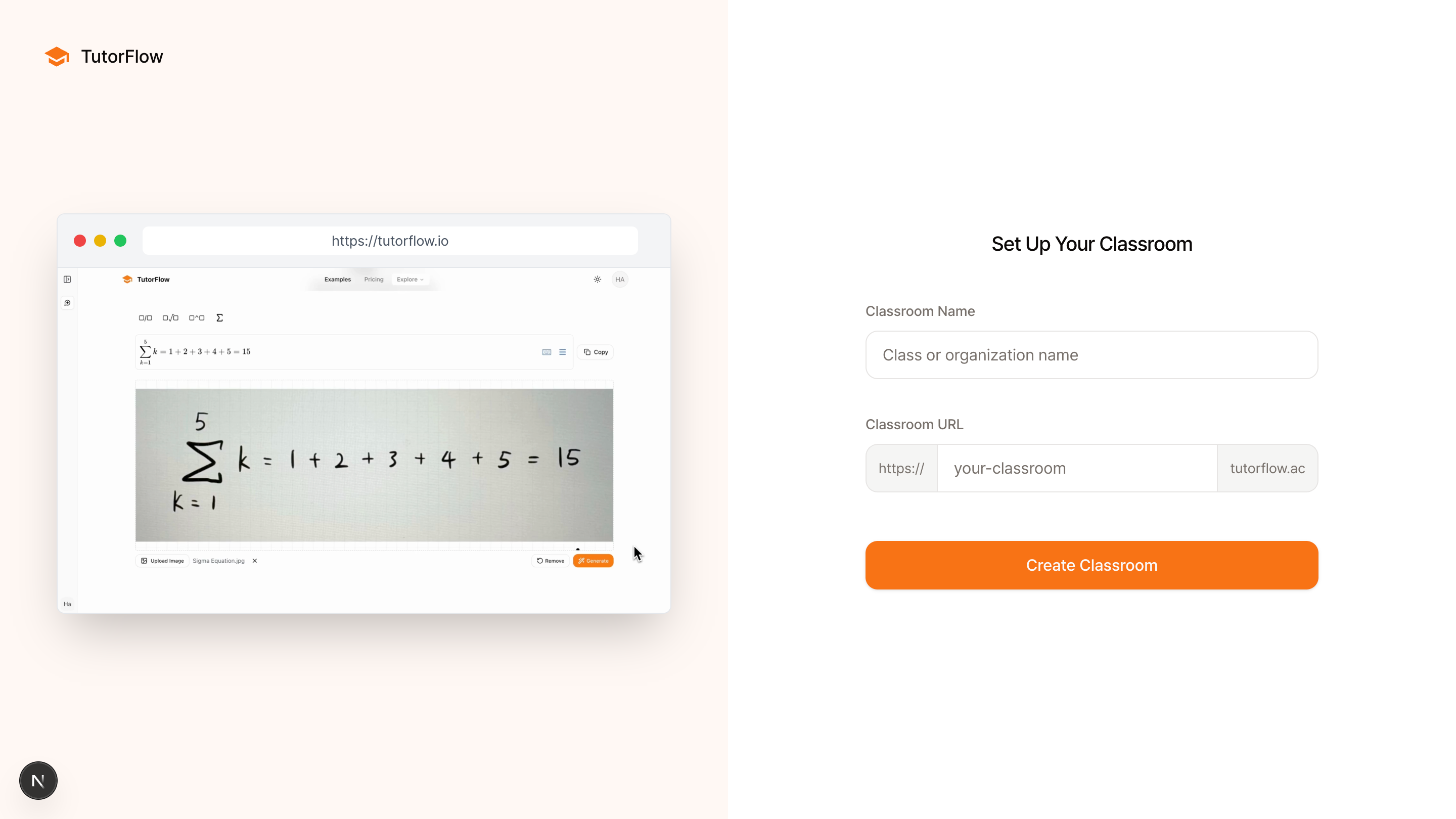
- Enter a classroom name. Choose a name that reflects the department, cohort, or program you plan to run in this classroom.
- Review the classroom URL. TutorFlow generates the URL automatically from the classroom name, but you can customize it to be shorter or cleaner.
- Click Create Classroom to finish.
You can rename the classroom or update the URL later in the classroom settings.
Already have an account
If you already have a TutorFlow account, sign in directly instead of creating a new one:
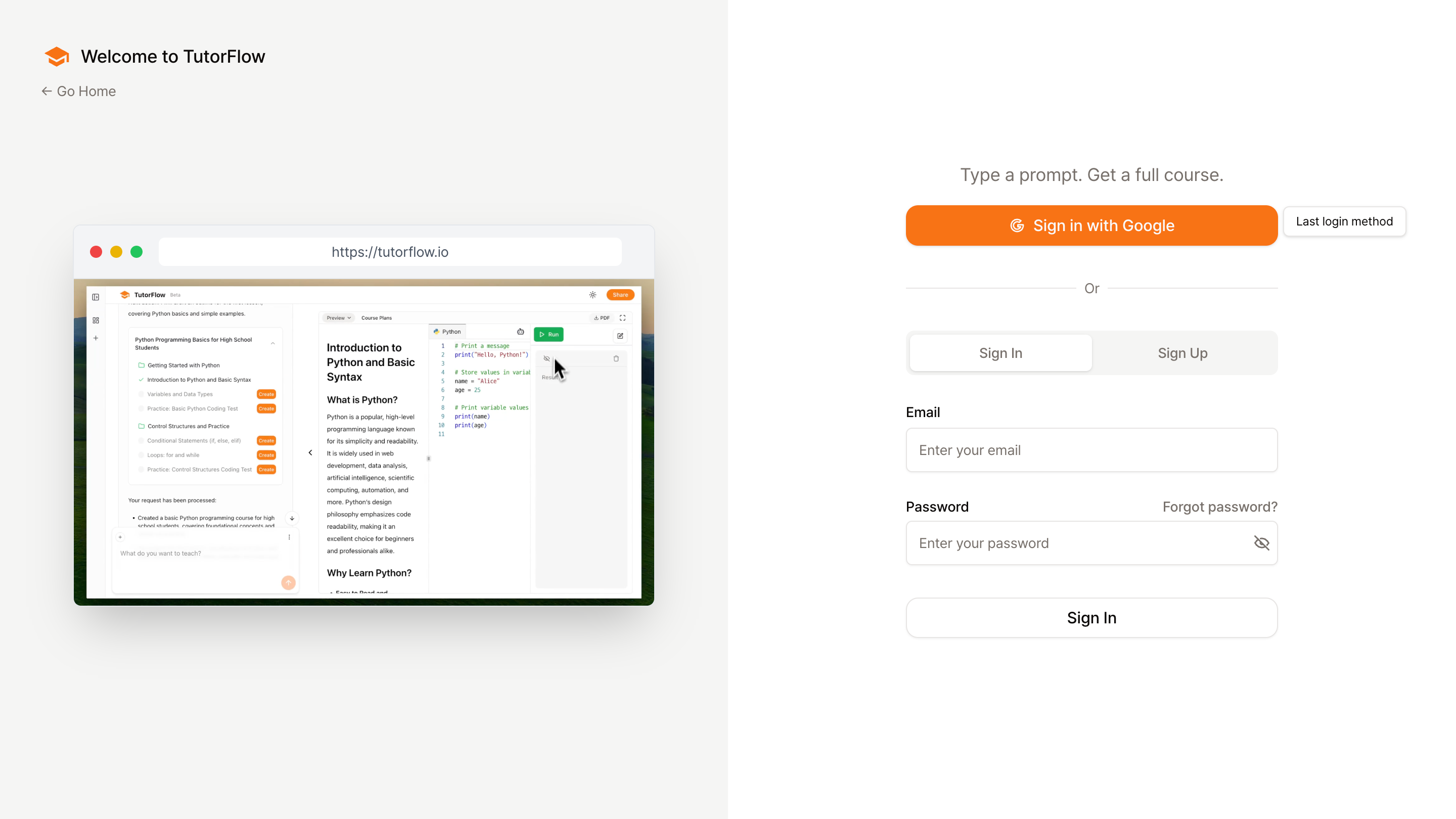
- Visit https://tutorflow.io/sign-in.
- Click Sign In in the tab bar.
- Enter your email and password, or click Continue with Google.
- Click Sign In to enter your workspace.
If you have forgotten your password, click Forgot Password on the sign-in screen to receive a password reset email.
Common questions
Do I need to enter a credit card to sign up? No. Signing up for TutorFlow does not require payment information.
Can I change my classroom name or URL later? Yes. Both the classroom name and the classroom URL can be updated later in the classroom settings.
What happens if I use Google sign-in instead of email? Your account is linked to the Google email you used. You can continue signing in through Google every time, and you do not need a separate password.
Next step
Once your account and first classroom are set up, continue with the onboarding flow and start creating content: