Plenty of educators have a backlog of video ideas. What stops them is the production around the idea: setting up a camera, re-recording narration until it sounds right, then losing an evening to editing software built for film crews. So the teaching content stays in slides and documents.
This guide walks through a different workflow, one where you go from a topic or a script to a finished, narrated educational video without recording anything, and then refine it in an editor simple enough to use with no video background.
From a Topic to a First Draft in Minutes
You begin with one sentence about what you want to teach.
In TutorFlow, you provide a topic, optional details, a target length, and a voice preference. From there the tool generates a scene-by-scene narration script, records that script as AI speech, and pairs each scene with matching stock footage, then assembles everything into a single previewable video. There is no camera, no microphone, and no studio. Within a few minutes you are reviewing a structured first draft, which is a far easier task than building one from a blank project file.
If you already have your words written, you do not have to hand the script to the AI. You can supply your own narration script and let TutorFlow split it into scenes and voice it, so the wording stays exactly as you wrote it. This matters more in education than in most video work, where the precise phrasing of a definition, a safety step, or a policy is the whole point.
What Most AI Video Tools Skip: Editing After Generation
Many tools will generate a video from a prompt. The problem is what happens next. When the AI gets a sentence slightly wrong, picks the wrong clip, or paces a scene poorly, most generators leave you with two options: regenerate the whole thing and hope, or export and fix it in separate editing software. Neither respects your time.
This gap is more serious in teaching than it looks. A polished marketing clip with a clumsy line is a small problem. A compliance or policy video that states a rule incorrectly is a liability, and a course explainer that defines a term loosely will be repeated by every learner who watches it. Education is exactly the use case where a human has to be able to correct the last ten percent before anything ships.
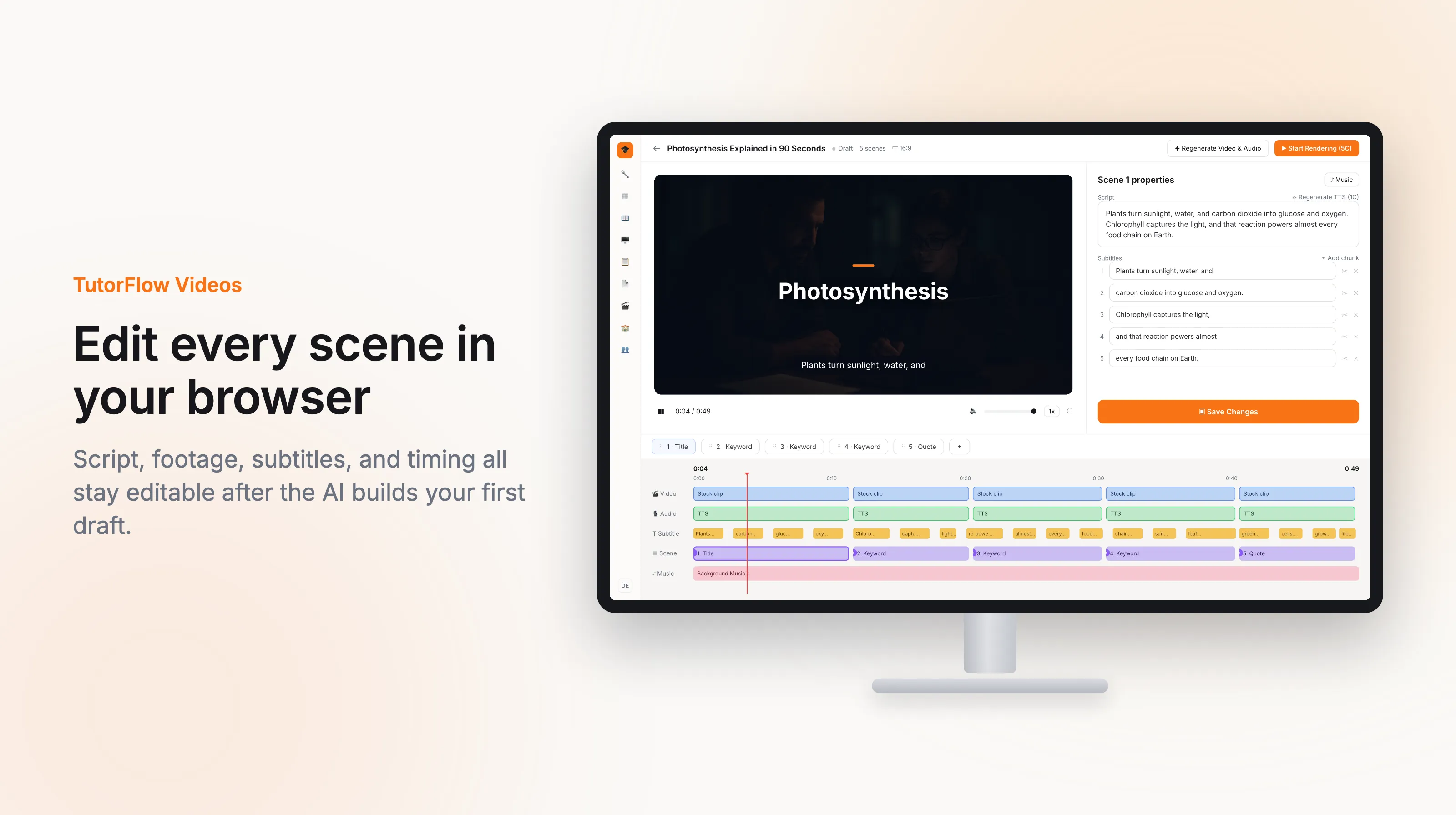
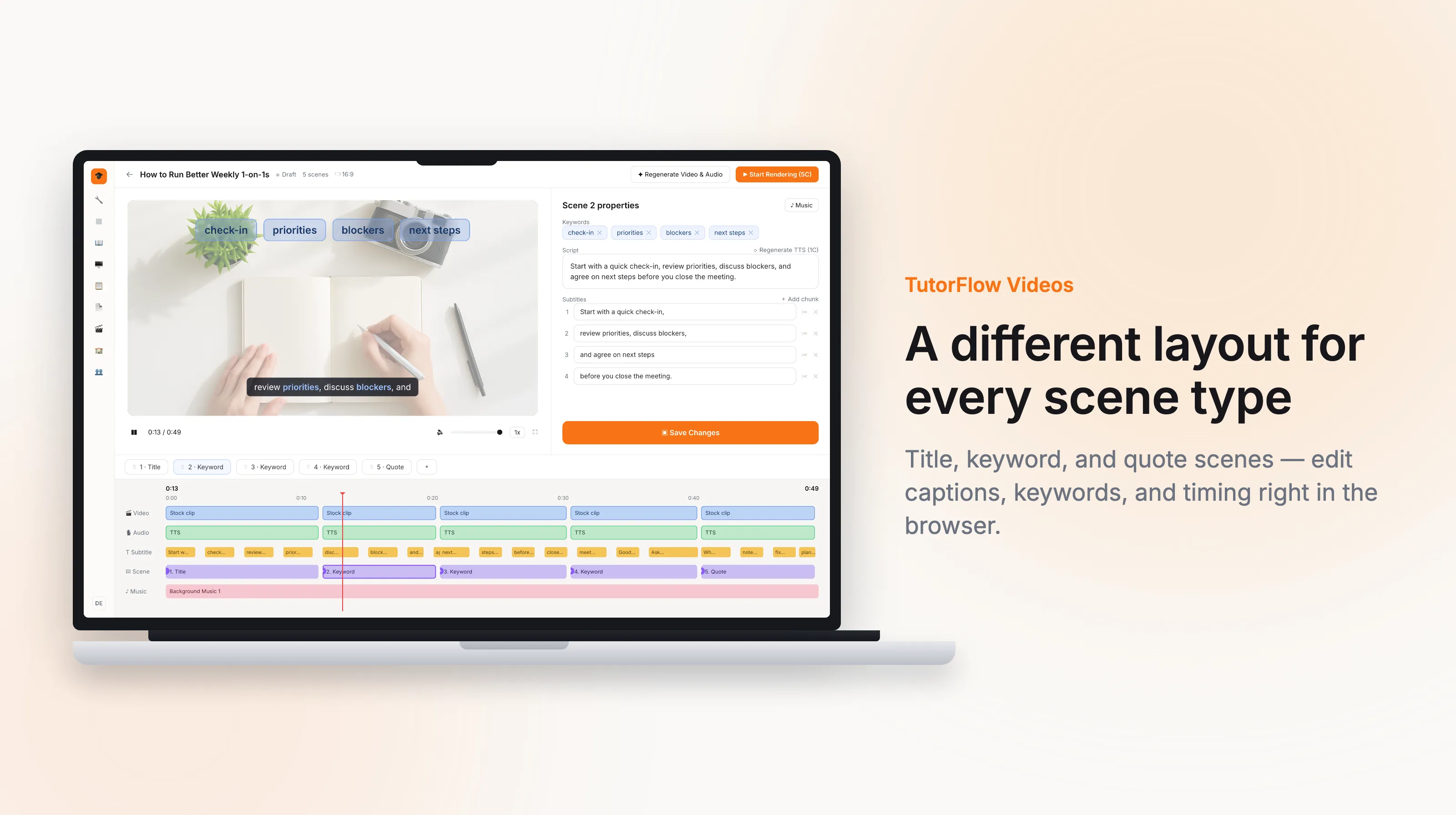
TutorFlow treats the generated video as a draft you control. Every part of it is editable inside a browser-based scene editor designed for people who teach, not for people who edit film for a living.
- Rewrite narration in place. Edit any scene's script directly, then regenerate just that scene's voiceover instead of the entire video.
- Swap the footage. Search for a different stock clip, let the tool find one automatically, or upload your own video for a scene.
- Reorder by dragging. The scene navigator shows each scene as a chip. Drag to reorder, click to add, and the preview updates immediately.
- Tune timing visually. A four-track timeline for video, audio, subtitles, and scene lets you drag clip edges to adjust duration and offset, the same mental model as any modern editor, without the complexity.
- Add transitions and fix subtitles. Choose a transition between scenes and adjust subtitle timing chunk by chunk so the captions land with the narration.
The editor is deliberately approachable rather than feature-heavy. You do not need to know what a keyframe is to move a scene, replace a clip, or fix a line of narration, and you never leave the browser to do it. If you are still weighing options across the category, this editability is the line worth testing first when you compare AI tools for training videos.
Built for Teaching, Not Generic Marketing Clips
A general-purpose AI video maker is built to produce attractive clips for any purpose, and that generality is exactly why it struggles with instruction, where structure, clarity, and recall matter more than gloss.
TutorFlow's video creation is built around education, training, and coaching. The on-screen text templates show it: a keyword template that highlights the terms learners should remember, a title template for clear section headings, and a quote template for the rules or definitions that need to stand out. Each one maps to a teaching job rather than a visual style.
That focus shows up across the formats educators and L&D teams actually need:
- Flipped classroom and asynchronous lectures. Keep each video to a single concept in roughly two minutes. Longer asynchronous videos see sharply lower completion, so one idea per video usually beats a ten-minute overview of five.
- Employee onboarding, broken into short, consistent segments for company context, tools, and role expectations.
- Compliance and policy training, where the same explanation reaches every employee the same way and is easy to update when a regulation changes.
- Course introductions and coaching modules that orient learners before they begin.
- Short-form vertical content in 9:16 for Shorts, Reels, and TikTok, where 45 to 60 seconds tends to perform best and accurate subtitles are essential for mobile viewing.
Because it lives alongside the rest of TutorFlow, a video can be paired with a quiz or assessment, so completion and comprehension are recorded rather than assumed.
A Simple Workflow You Can Repeat
Once you have done it once, the loop is fast enough to make video a normal part of how you produce content rather than a special project.
- Enter a topic, or paste your own narration script.
- Let TutorFlow generate the scene-based draft with narration and footage.
- Refine it in the editor: rewrite a line, swap a clip, reorder scenes, fix timing.
- Adjust subtitles and choose a vertical format if it is heading to social.
- Render to MP4, then download or share.
The first version is rarely the version you ship, and the workflow is built around that. Getting from a rough draft to a polished, accurate teaching video is a quick pass of small edits, not a second job.
Make Your First Video
If recording and editing have been the reason your video plans never happened, this removes both. Start from a topic you already teach, generate a draft, and spend your time on the part that matters: making the explanation clear. See how the full draft-to-render workflow fits your courses on the TutorFlow video creation page, then make one short video before you commit to a longer project.
Frequently Asked Questions
Do I need any video editing experience to use this?
No. You start from a topic or a script, and TutorFlow generates a complete narrated video for you. Refinements happen in a browser-based editor designed for educators, where you drag scenes to reorder, click to swap a clip, and edit narration as plain text. There is no separate software to install and no editing background required.
Can I edit the video after the AI generates it?
Yes, and this is the main difference from most AI video tools. The generated video is a draft, not a locked output. You can rewrite and re-voice individual scenes, replace or upload footage, reorder scenes, adjust timing on a four-track timeline, set transitions, and fine-tune subtitles, all in the browser. For education and compliance content, that final human pass is what keeps the facts correct.
What kinds of educational and training videos can I make?
The tool is built for teaching, training, and coaching specifically. Common formats include flipped-classroom lectures and explainers, employee onboarding, compliance and policy training, course introductions, and short-form vertical videos for Shorts, Reels, and TikTok. Videos can also be paired with a TutorFlow assessment to track completion and comprehension.