Adding subtitles to a training video is not only a transcription task. It is a publishing decision. The right workflow depends on where the video will be watched, whether viewers need language control, how often the content changes, and whether the transcript should become searchable course material later.
For most educators and training teams, the best AI subtitle workflow is simple: generate subtitles and a full transcript from the finished video, review the terms that matter, keep the SRT caption file as the source of truth, then export a burned-in version only for channels that need permanent on-screen text.
That approach avoids the usual captioning trap. You do not want five disconnected versions of the same script, one in the video editor, one in an SRT file, one in a course summary, one in a handout, and one in a transcript download. You want one reviewed text asset that can travel with the video and support the rest of the training workflow.
Quick answer: keep captions flexible unless the channel forces otherwise
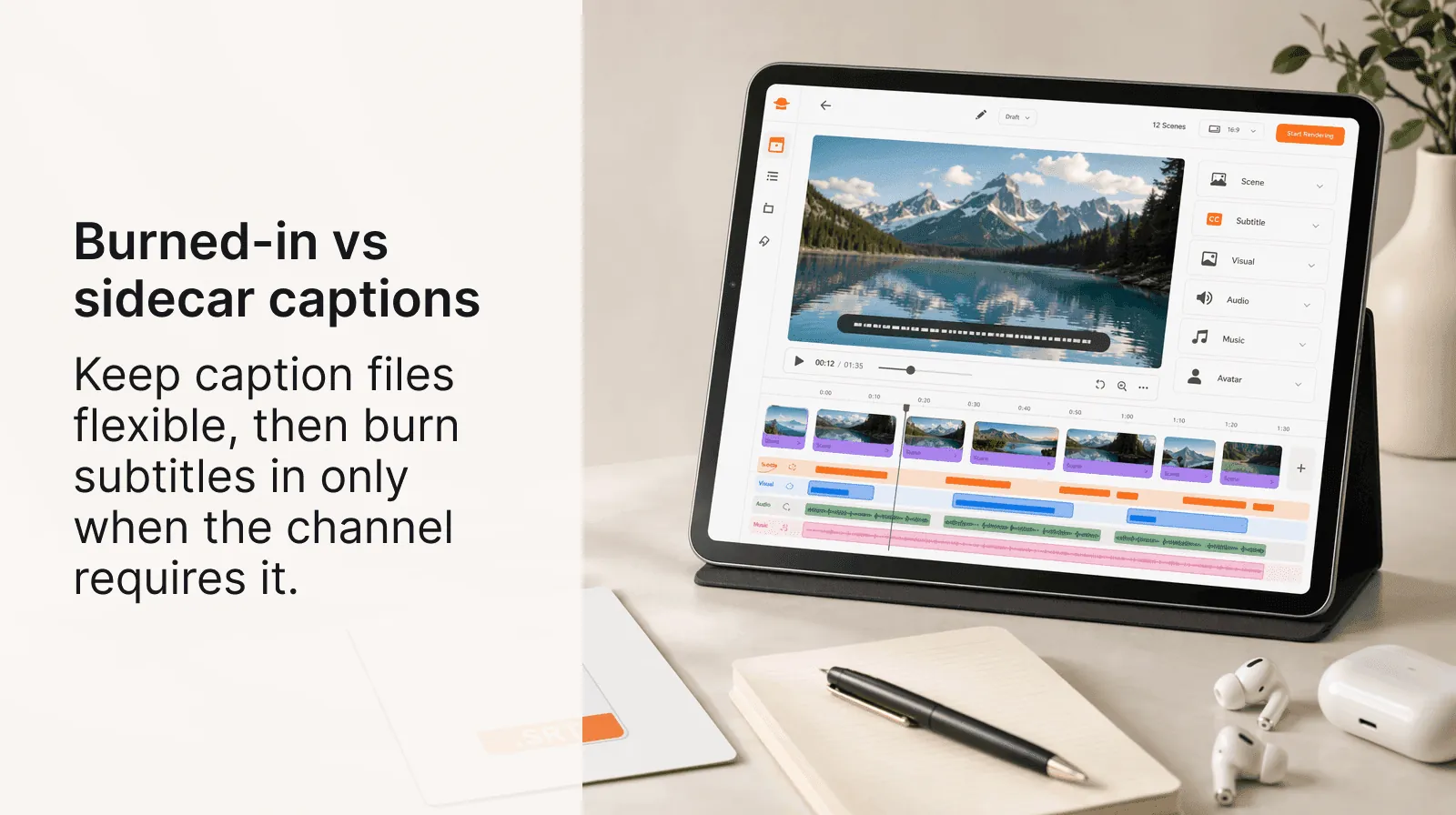
If the video will live inside an LMS, course portal, YouTube page, or internal training library, use a separate caption file. SRT is the safest default because it is widely accepted, easy to edit, and simple to archive. VTT is useful when a web player needs richer cue settings or browser-native caption support.
If the video will be posted as a social clip, silent autoplay preview, or downloadable file that might lose its caption track, export a burned-in version. Burned-in subtitles are less flexible, but they survive resharing and platforms that strip metadata.
The practical rule is this: edit captions as text first, then decide how to package them for each channel. AI helps with the first draft, but the review pass is what makes the subtitle file trustworthy.
Choose the subtitle format by distribution channel
Start with the destination, not the tool. The same training video may need more than one output.
| Where the video goes | Best subtitle format | Why it fits | What to review before publishing |
|---|---|---|---|
| LMS, course portal, or internal academy | Sidecar SRT or VTT | Viewers can toggle captions, and teams can replace the caption file without rendering a new video | Technical terms, timestamps, speaker changes, and file upload compatibility |
| YouTube or video hosting page | Sidecar captions | The platform can expose captions, transcript search, and language options | Title casing, line breaks, language labels, and any auto-sync drift |
| Social feed or silent autoplay embed | Burned-in subtitles | The captions stay visible even if the platform ignores caption files | Safe margins, text size on mobile, and whether captions cover important visuals |
| Downloadable MP4 for partners or clients | Burned-in version plus archived sidecar file | Recipients may not keep caption files together with the video | Final rendered video, file naming, and whether the source caption file is stored |
| Training library search or handouts | Clean transcript | The text becomes reusable outside the video player | Headings, paragraph breaks, acronyms, and reusable summary sections |
Many teams caption videos once, then discover the same file has to work in a portal, a social post, and a downloadable training package. Keeping the SRT file and transcript as editable source assets saves that rework.
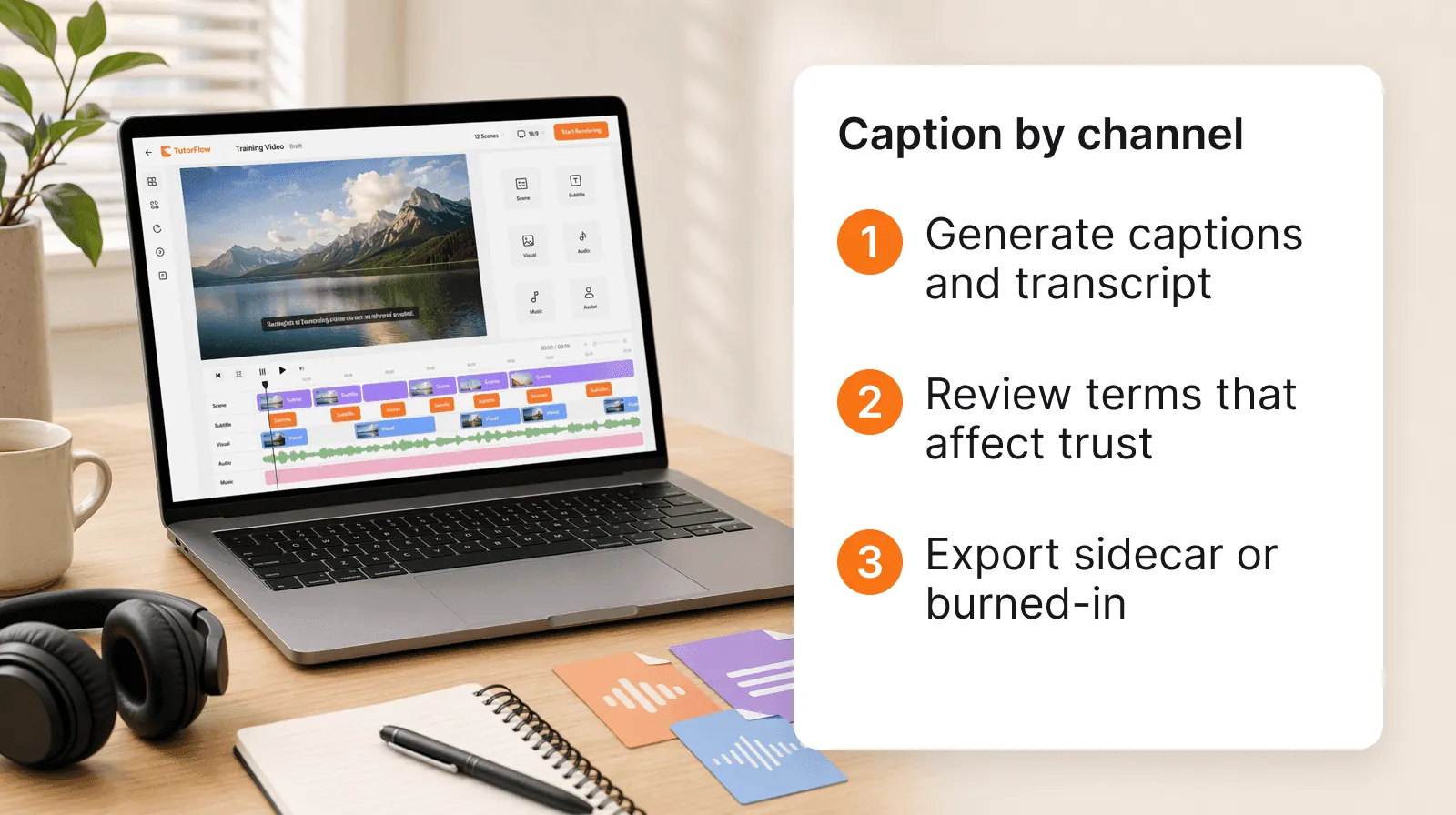
Generate subtitles and a transcript in TutorFlow
The slow part of captioning used to be transcription and timing. TutorFlow's Video Subtitle Generator handles both from the uploaded video, so the first draft includes time-synced SRT subtitles and plain transcript text without a separate transcription service.
Use the AI output as a draft, not as a final approval step. A reliable workflow looks like this:
- Upload the finished training video. Use the version whose narration and timing are already close to final.
- Generate subtitles and the transcript. TutorFlow turns the spoken audio into caption chunks with timestamps and a full text transcript.
- Edit the caption chunks. Use the editor tab to adjust text, timing, order, and any missing caption segment before export.
- Check the raw SRT and plain text. The SRT tab is the packaging layer. The text tab is the reusable transcript layer.
- Preview before publishing. Open the preview with the same SRT file so timing and screen coverage are checked against the actual video.
- Export and reuse. Download the reviewed SRT, then turn the plain text transcript into notes, search text, summaries, or supporting course material.
That editor flow keeps the upload panel, subtitle editor, SRT view, text view, preview, and history list tied to one reviewed subtitle asset. A trainer does not have to copy an AI transcript into a spreadsheet, fix timestamps in another app, and then wonder which version was approved.
This is also why captioning belongs close to the broader video workflow. If you are still choosing the video creation stack, compare subtitle editing, transcript reuse, and revision cost alongside generation speed. The same criteria show up in the broader guide to choosing AI tools for training videos.
Review subtitles like a training asset, not a social caption
Training subtitles carry instructional meaning. A wrong acronym, mistimed safety instruction, or mistranscribed product step can create confusion long after the video is published.
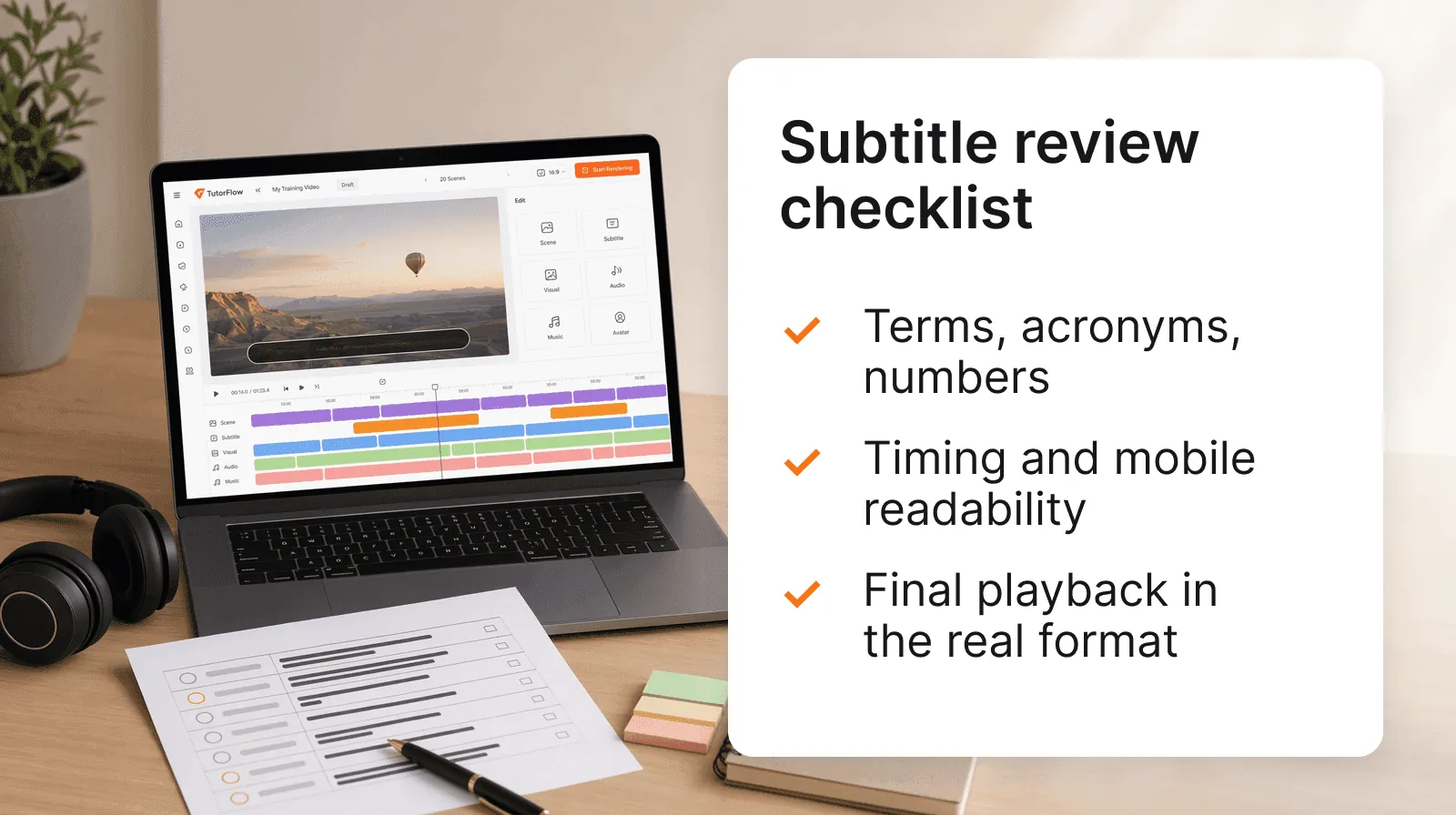
Use a focused review pass:
- Terms: Check product names, policy names, acronyms, formulas, and industry-specific language.
- Numbers: Verify dates, prices, quantities, compliance thresholds, and measurements.
- Timing: Make sure each line appears when it is spoken and clears before the next idea.
- Line length: Keep captions short enough to read without blocking the training visuals.
- Speaker clarity: Identify speaker changes when the video uses interviews, panels, or roleplay.
- Screen coverage: Confirm captions do not hide slides, code, UI controls, forms, or diagrams.
- Final playback: Watch the captioned version once in the same format your audience will use.
Two examples show why the review pass matters. In a compliance video, "fifteen minutes" and "fifty minutes" may both sound plausible in noisy audio, but only one is the reporting threshold. In a product tutorial, an AI transcript may turn "scene editor" into "seen editor", which makes the transcript harder to search and less credible for a new trainer.
This review is where AI saves time without removing editorial responsibility. The model can create the first synchronized draft, but a subject-matter owner should still approve the words that matter.
Treat SRT as the operating file, not only an export
The most useful caption file is the one the team can understand, edit, store, and reuse without opening the original video project. SRT works well because each caption keeps a simple number, time range, and text block. That makes it easy to spot timing problems, copy transcript text, upload captions to common platforms, and keep a reviewed file next to the video source.
The important habit is to name and store the caption file like a source asset. A file such as onboarding-security-2026-06-reviewed.srt is more useful than final-final-captions.srt because it tells the next trainer what the file belongs to and whether it has passed review.
Turn the transcript into a searchable training library
The transcript is often more valuable than the caption file because it makes the video useful after the first viewing. For educators, it can become a lesson summary, quiz prompt, vocabulary list, or reading alternative. For L&D teams, it can become searchable onboarding documentation, a compliance reference, a manager handout, or source material for refreshers.
This matters most when you build a library, not a single video. Ten captioned training videos can become ten searchable text assets. A course creator can turn a recorded explanation into a written module, then pair it with a quiz or follow-up activity.
If your goal is to create the training video itself, not only caption an existing one, the adjacent workflow is covered in creating an educational video without recording. The stronger operating model is to keep video, subtitles, transcript, and review notes connected from the start.
Make one captioned video the standard
Do not start by captioning an entire library. Pick one training video that already matters: an onboarding step, a policy update, a course explanation, or a tutorial that people replay often. Generate subtitles and a transcript, review the terms that affect trust, export the format that matches the destination, and save the transcript where the rest of the team can reuse it.
To test the workflow, start with the Video Subtitle Generator. If you need the full video creation path, including scenes, narration, subtitles, and rendering, review the TutorFlow video creation workflow before producing the next training module.
FAQ
What is the best way to add subtitles to training videos with AI?
Generate a time-synced subtitle file and a transcript from the video, review the terms that affect trust, then export the right format for the destination. Use SRT or VTT for players that support captions, and use burned-in subtitles for social, silent autoplay, or downloads that may lose the caption file.
Should I use burned-in subtitles or a separate caption file?
Use a separate caption file when the video lives in an LMS, course portal, YouTube page, or training library because viewers can toggle captions and you can update the text later. Use burned-in subtitles when captions must remain visible after resharing, embedding, or downloading.
Can TutorFlow create both subtitles and a transcript?
Yes. TutorFlow's AI subtitle workflow creates time-synced subtitles and a full transcript from the uploaded video, so educators and trainers can caption the video and reuse the reviewed text in course materials, summaries, handouts, or searchable training libraries.