A training team finishes a six-minute onboarding video in English. Two weeks later, the sites in São Paulo, Lisbon, and Ho Chi Minh City ask for their own versions. Re-shooting means three presenters, three studio slots, and three edit passes, and every future policy change multiplies the same way.
Most teams fall back to subtitles and move on. Subtitles help, but they ask a warehouse worker or a nurse on shift to read while they watch. For safety and procedure training, that gap matters. In the US, OSHA's training policy says employers must instruct workers in a language and vocabulary they can understand, and that telling workers who cannot read to read the material does not meet that duty.
This guide shows how to localize training videos for global employees from one approved script, with a narrated version per language and no camera or recording booth.
Quick answer: one source script, one video per language
Approve the script in your source language first, including a short glossary of terms that must not change. Translate that script, then build each language version from it with narration in the target language. Keep subtitles in the same language, and have one fluent speaker per language review terms, numbers, and pronunciation before release.
Subtitles, AI narration, or human dubbing: choose by audience
Pick the format by how each audience watches. A desk worker and a forklift driver may need different versions of the same course.
| Format | Best for | Cost and speed | Watch out for |
|---|---|---|---|
| Subtitles only | Office staff watching at a desk, compliance refreshers, viewers fluent in the source language | Fastest, cheapest | Viewers must read and watch at once; weak for hands-on or low-literacy audiences |
| AI narration in the target language | Onboarding, procedures, product training for distributed teams | Fast to produce once the script is translated, plus review time | Names, acronyms, and brand terms need a pronunciation check |
| Human dubbing or presenter re-shoot | Executive messages, brand campaigns, content where a known face matters | Days to weeks per language | Every script change means another session |
Many teams mix formats: AI narration for a policy update, the original speaker with subtitles for the CEO's welcome. If you are still comparing tools for the job, the guide to choosing AI tools for training videos sorts them by category.
Lock the source script before you translate anything
Most multilingual video problems start upstream. If the English script is still moving, every translation inherits the churn.
Before translation, freeze three things:
- The script itself. Short sentences translate more cleanly and fit subtitle lines better. One idea per sentence is a good rule for narration.
- A term list. Product names, internal system names, job titles, and regulated terms, each marked "translate" or "keep as is."
- Numbers and units. Decide whether "5 ft" becomes "1.5 m" for each market, and whether dates and currency change format.
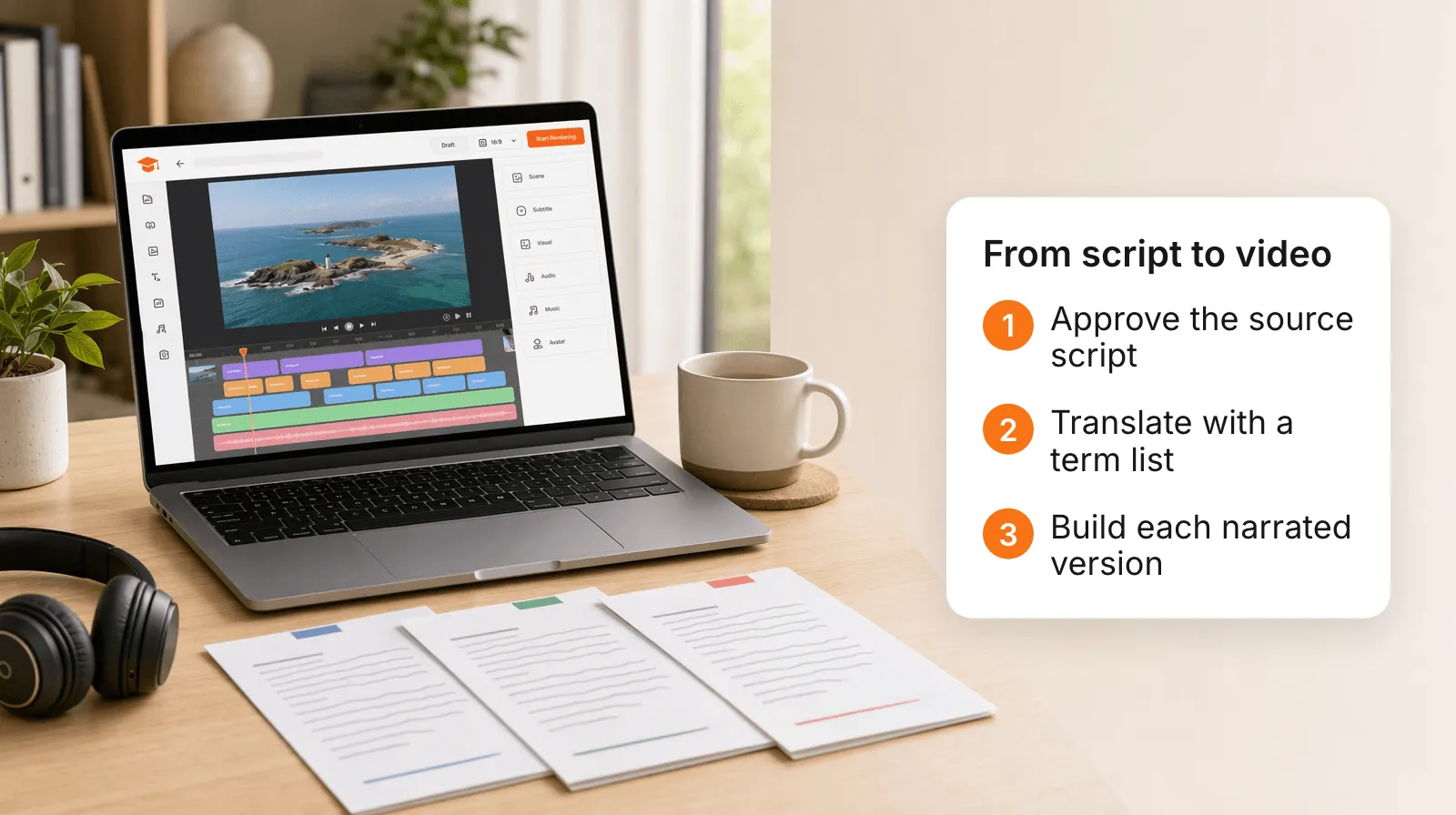
Translation can come from your localization vendor, a bilingual colleague, or an AI draft that a fluent reviewer edits. What matters is that each language version has one approved script that everyone works from.
Build each language version from the approved script
To create a training video in multiple languages with TutorFlow, build each version as its own video from the translated script:
- Start a new video and choose a format. Use 16:9 for a course or LMS, or 9:16 for phones on the floor.
- Set the narration language to the language of your translated script. Regional variants are separate choices, which matters for training: Portuguese for Brazil or Portugal, Spanish for Spain or Latin America, English for the US or the UK, and Simplified or Traditional Chinese. São Paulo and Lisbon get different Portuguese, not one compromise version.
- Paste the translated script as your narration script. TutorFlow splits it into scenes and keeps your wording, so the approved translation is what viewers hear. The script box holds about 6,000 characters, roughly six minutes of English narration. A 16:9 video runs up to 10 minutes and a 9:16 video up to 3, so split a longer course into several videos.
- Pick a voice. Play the samples to hear your first scene in each voice before you generate.
Subtitles and on-screen headlines follow the same script, so they come out in the narration language too.
You can also generate a version straight from a topic with a narration language set, and the script is written in that language. That is faster, but each language gets its own wording. For compliance and procedure training, where every version must say the same thing, start from the translated script.
New to building a narrated video from a script? The walkthrough in how to create an educational video without recording covers the editor basics.
Use a real voice where trust depends on it
AI narration handles most of a training video well. Some scenes still land better in a person's own voice: a site manager welcoming new hires, a safety lead explaining a local rule, or a trainer the team already knows.
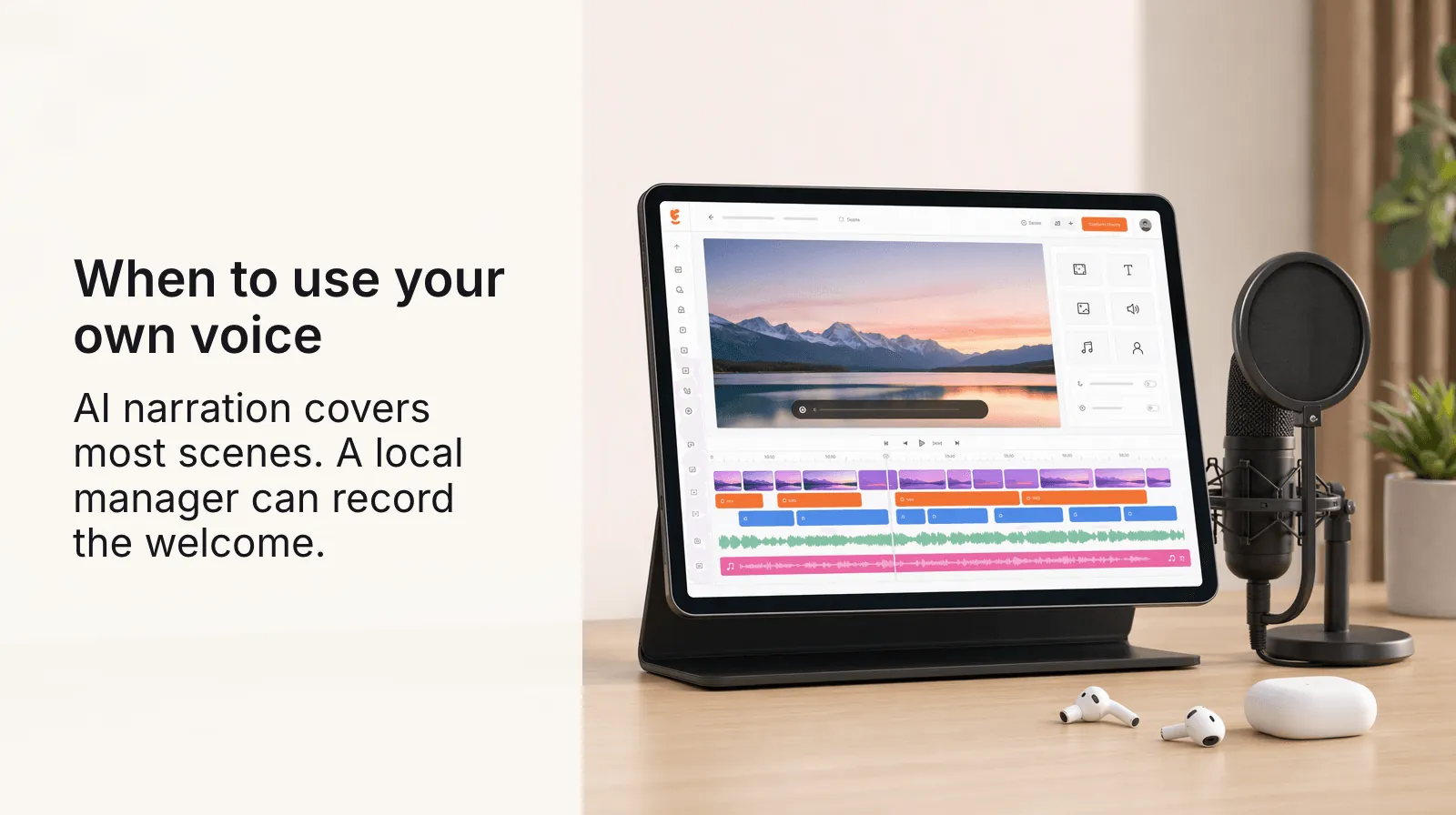
For those scenes, record your voice in the editor or upload an audio file. Each scene takes up to three minutes of audio, and the other scenes keep their AI narration. One practical setup is a local manager recording only the opening scene in their language, which gives each version a familiar voice without a full recording session. Read the scene's script as written, since that scene's subtitles still come from it.
Review every language before release
AI narration makes a new language version cheap. It does not make it correct. Plan a short review by a fluent speaker of each language, ideally someone from the team that will watch it.
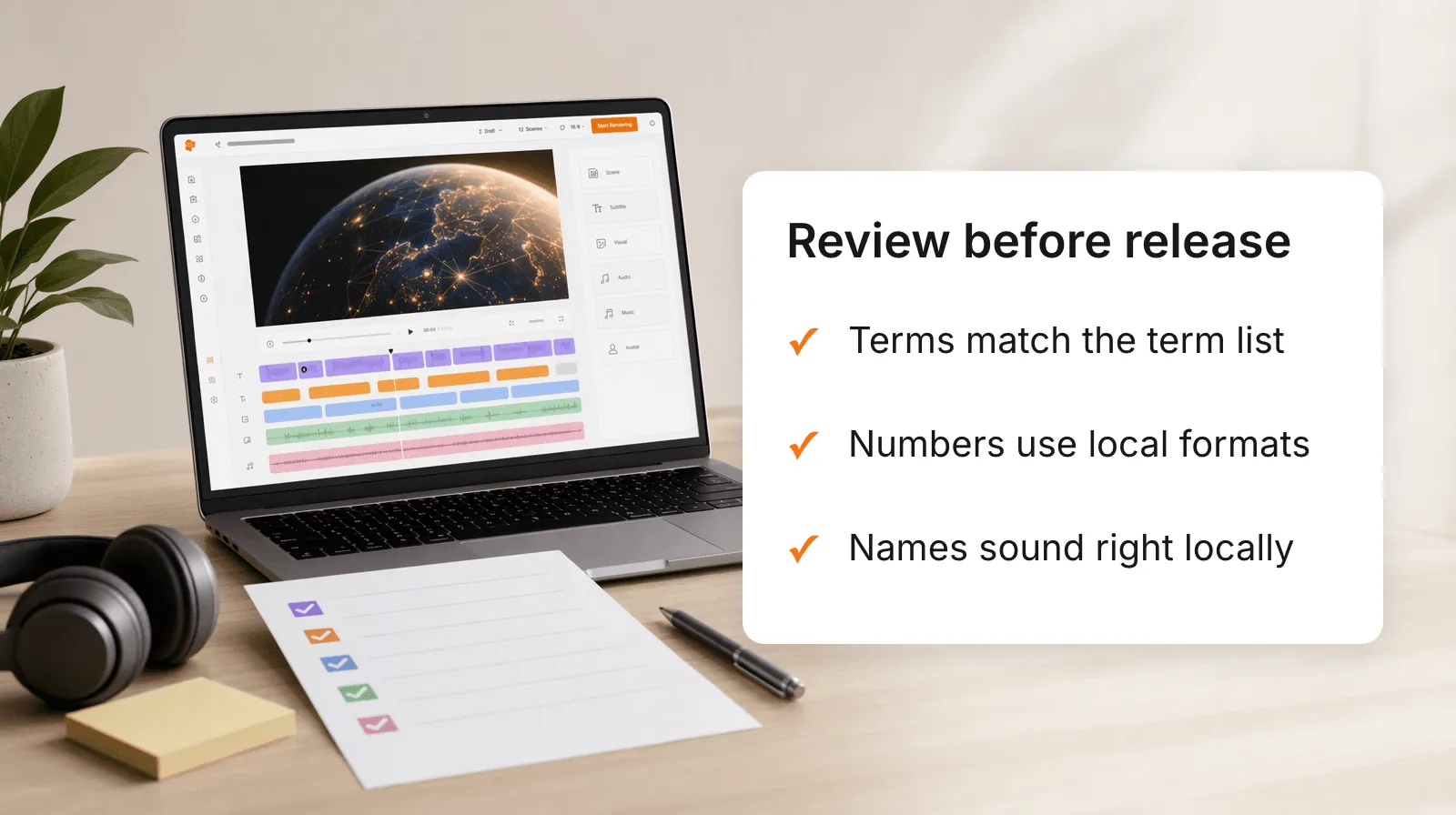
Give reviewers a focused checklist instead of "watch it and tell us what you think":
- Terms. Product names, system names, and regulated terms follow the term list.
- Numbers and units. Figures, dates, and measurements match the local format you chose.
- Pronunciation. Names, acronyms, and brand terms sound right to local ears, including the regional accent. If a term is misread, respell it in that scene's script and use Regenerate TTS for that scene only. The scene's subtitles are rebuilt from the new script, so set the subtitle text back to the correct spelling afterwards.
- On-screen text. Scene headlines and highlighted keywords are in the narration language, and no stock clip shows text in another language.
- Subtitle fit. German and French lines often run longer than English. Check that subtitles stay readable on a phone.
Subtitles in a TutorFlow video are part of the video file. If your LMS needs a separate caption file, the subtitle workflow for training videos covers creating one from the finished video.
Keep language versions in sync when the source changes
The trouble starts with the first policy change after launch, when one scene in the English video changes and every other version quietly falls behind.
Name each version so anyone can see its language and revision, for example Onboarding-2026-Q4-pt-PT, and give each language one owner who confirms updates before the new version replaces the old one in your course.
When the source changes, note which scenes changed, update the translated script for those scenes only, and regenerate their narration. If a changed scene carries a recorded voice, regenerating replaces it, so ask the speaker to record that scene again. Because each version is built from text, an update to one scene is a script edit and a narration regeneration for that scene.
Start with your highest-traffic video
Pick the training video most of your non-English-speaking teams watch, usually onboarding or a core safety procedure. Lock its script, translate it into one language, and build that version in TutorFlow's video generator. Run the review checklist with one fluent speaker, then use what you learn to set the process for every other language.
FAQ
What is the difference between translating a video and creating a multilingual version?
Video translation tools take a finished recording and replace its audio. Creating a multilingual version starts from the approved script and builds a new narrated video per language. TutorFlow uses the second approach, so each version stays editable scene by scene when the content changes.
Which languages can TutorFlow narrate training videos in?
TutorFlow offers 15 narration language options: English (US and UK), Spanish (Spain and Latin America), Portuguese (Brazil and Portugal), French, German, Italian, Korean, Japanese, Simplified Chinese, Traditional Chinese, Vietnamese, and Mongolian.
Can a local manager narrate part of the video instead of the AI voice?
Yes, scene by scene. Record in the editor or upload an audio file of up to three minutes per scene, and the other scenes keep their AI narration.